New featuresImprovements
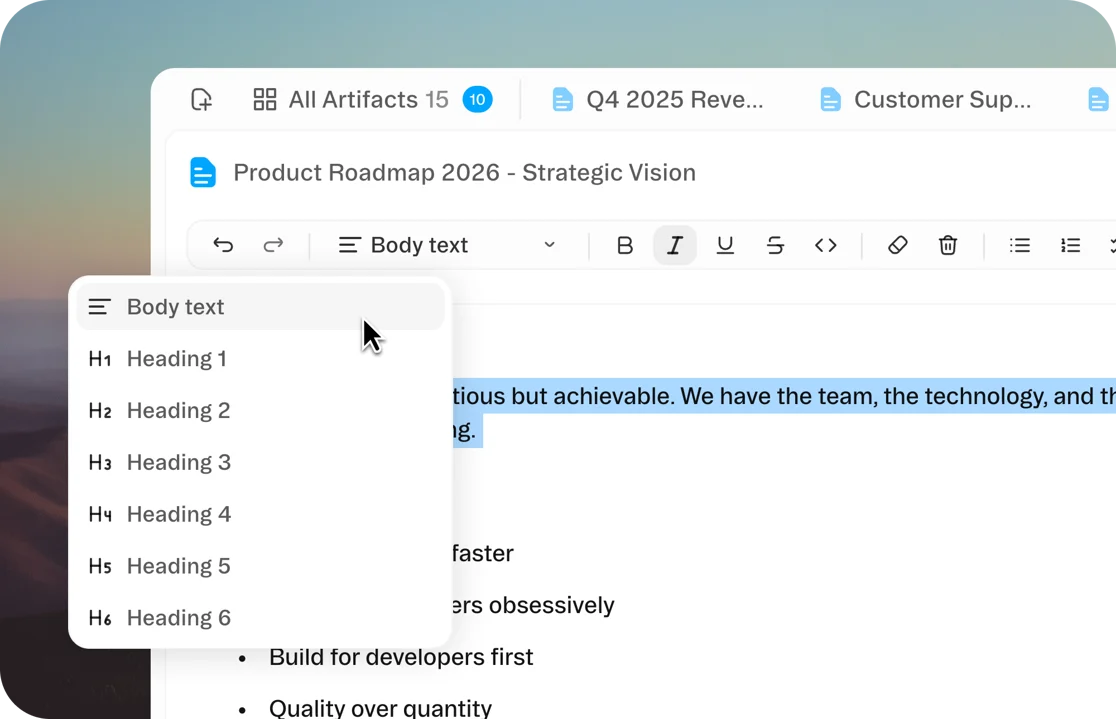
Text Adjustment
You can now adjust text size inside Obvious docs, so writing and editing feels comfortable on any screen and with any task.
Read through our latest product updates below and subscribe to our latest product updates, and sign up to start using Obvious.
You can now adjust text size inside Obvious docs, so writing and editing feels comfortable on any screen and with any task.
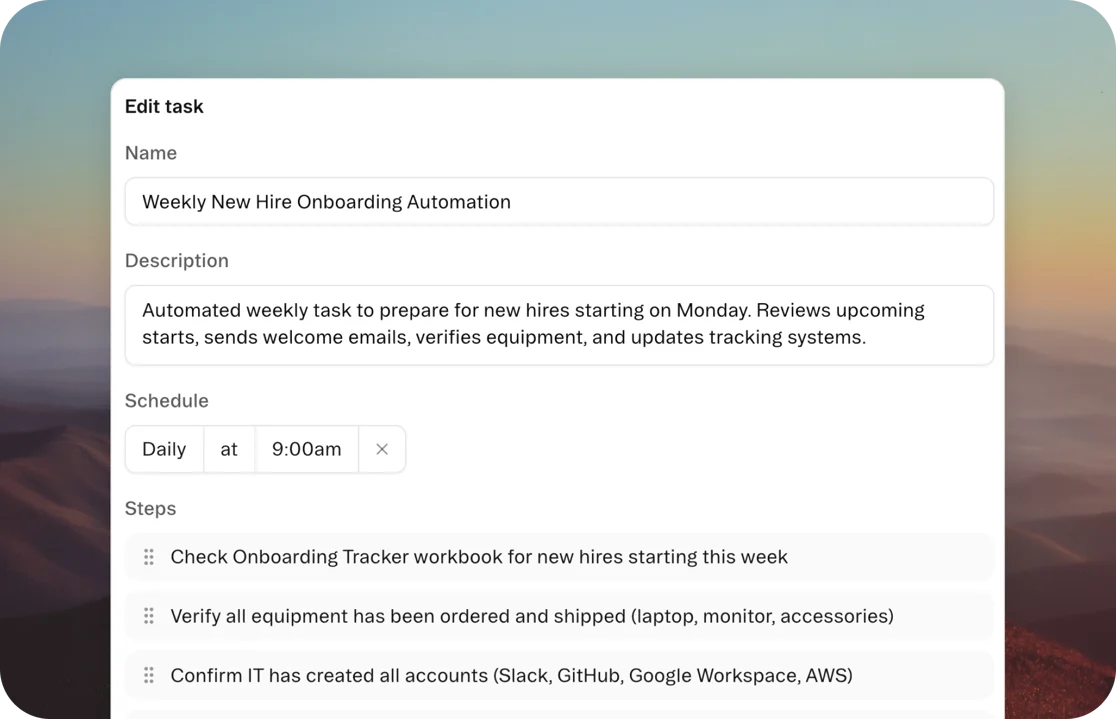
Task creation and editing happens in a centered modal instead of the sidebar, giving you more room to build and review complex workflows.
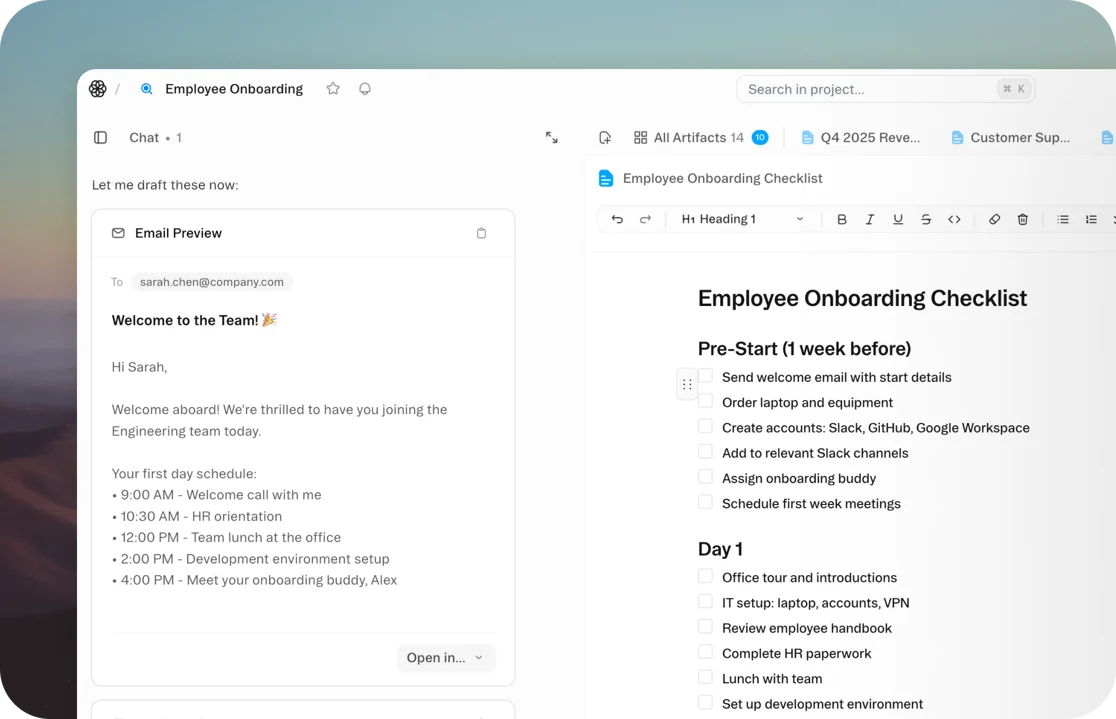
Agent‑composed emails appear in a preview card, so you can review and confirm (or edit) before anything gets sent.
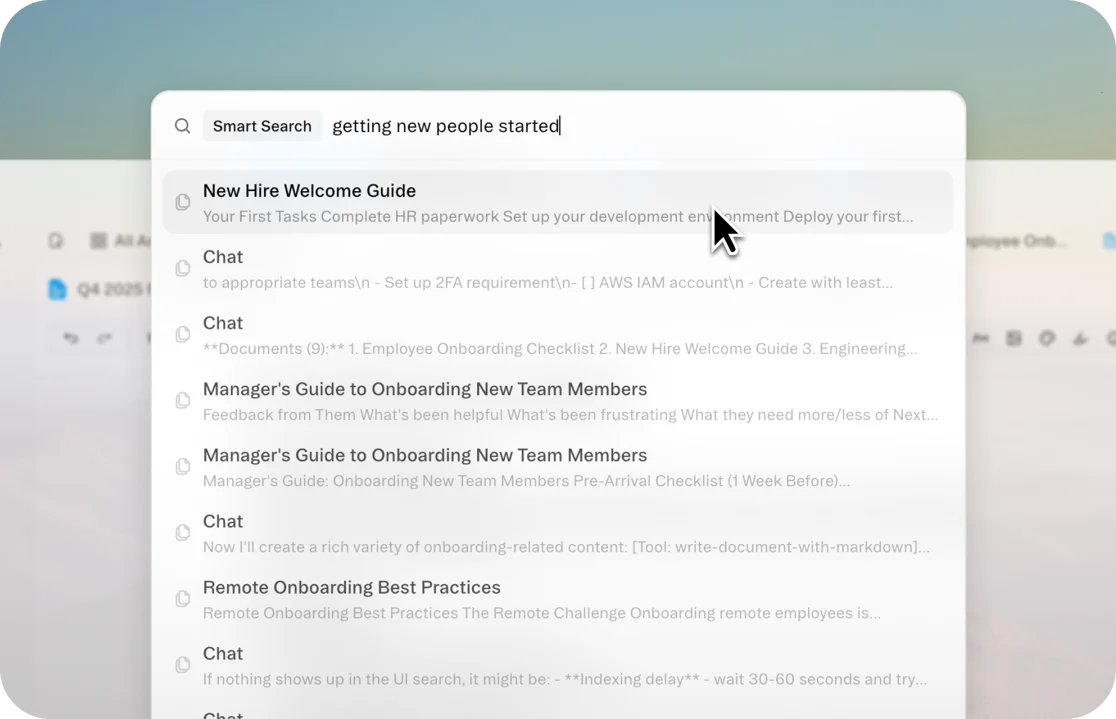
Semantic search understands meaning and intent so you can find the right doc even if you don’t remember the exact phrasing.
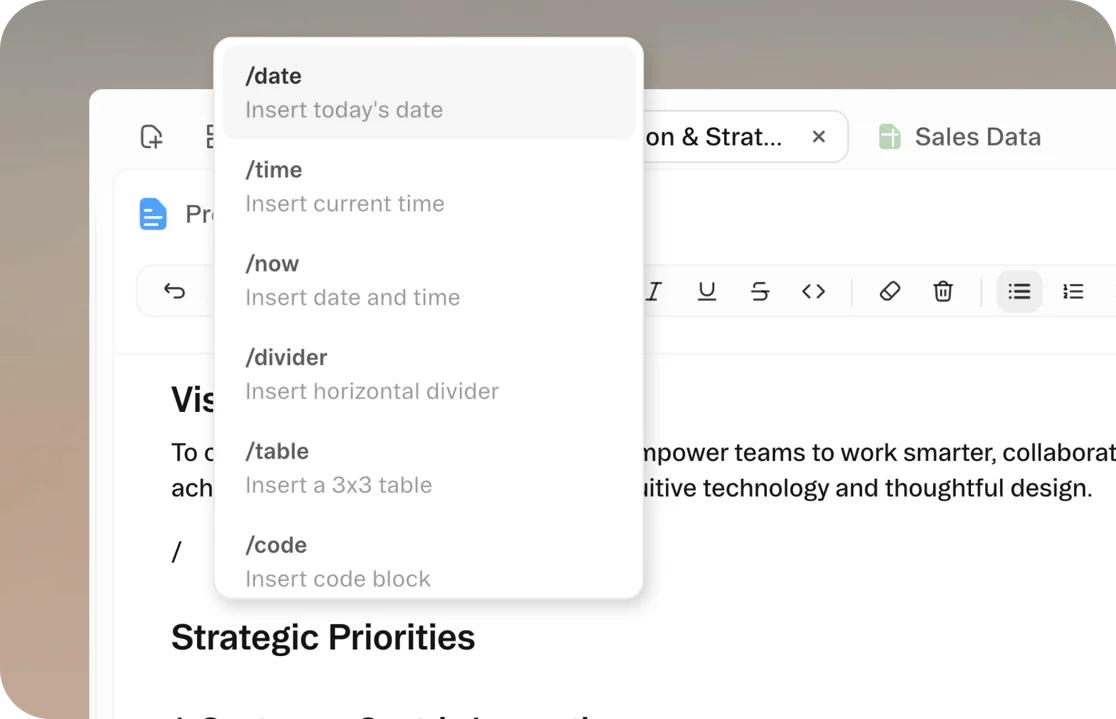
Type / to trigger a command from inside any document. It's the quickest way to build out your docs, whether you're adding a table, inserting code, or segmenting content.
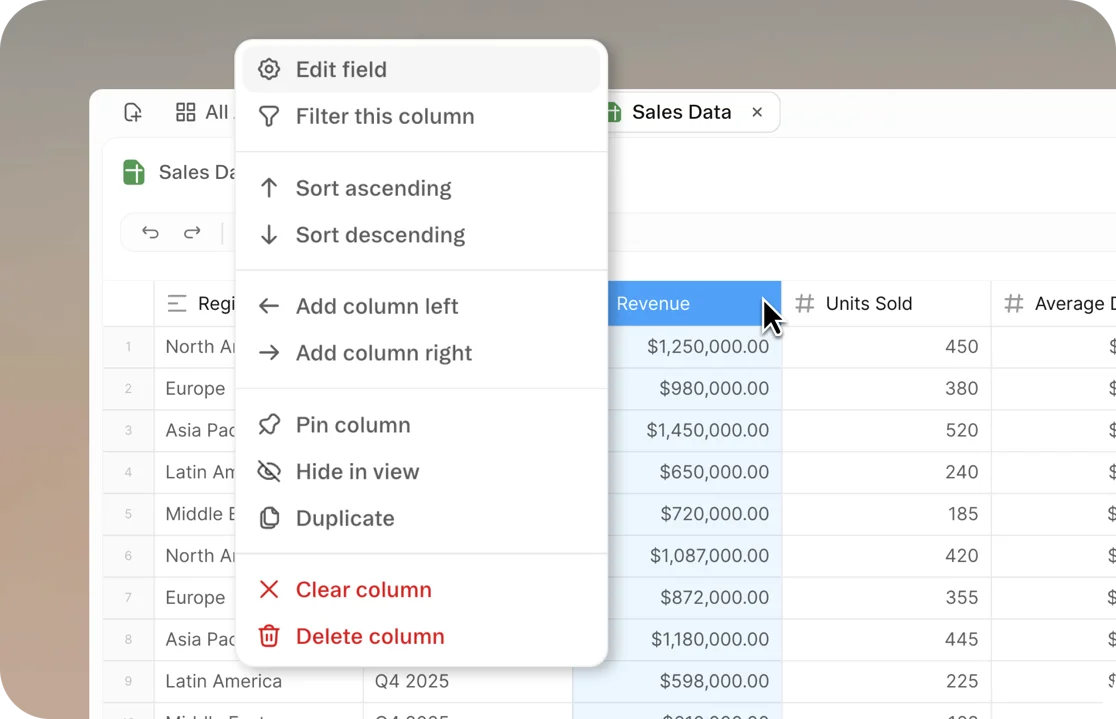
You can now right-click any column header or cell in a workbook to access a menu of common actions.
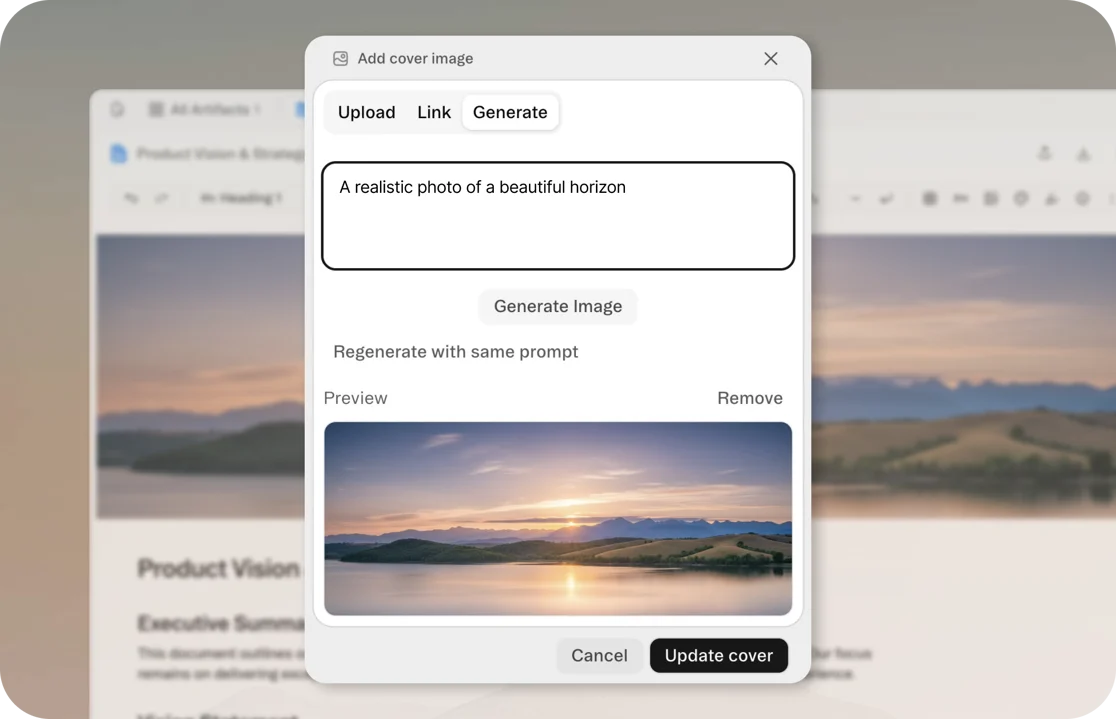
In a growing library of project and lists, cover images helps your team find documents more easily. Upload your own or ask the agent to generate cover images for your docs.
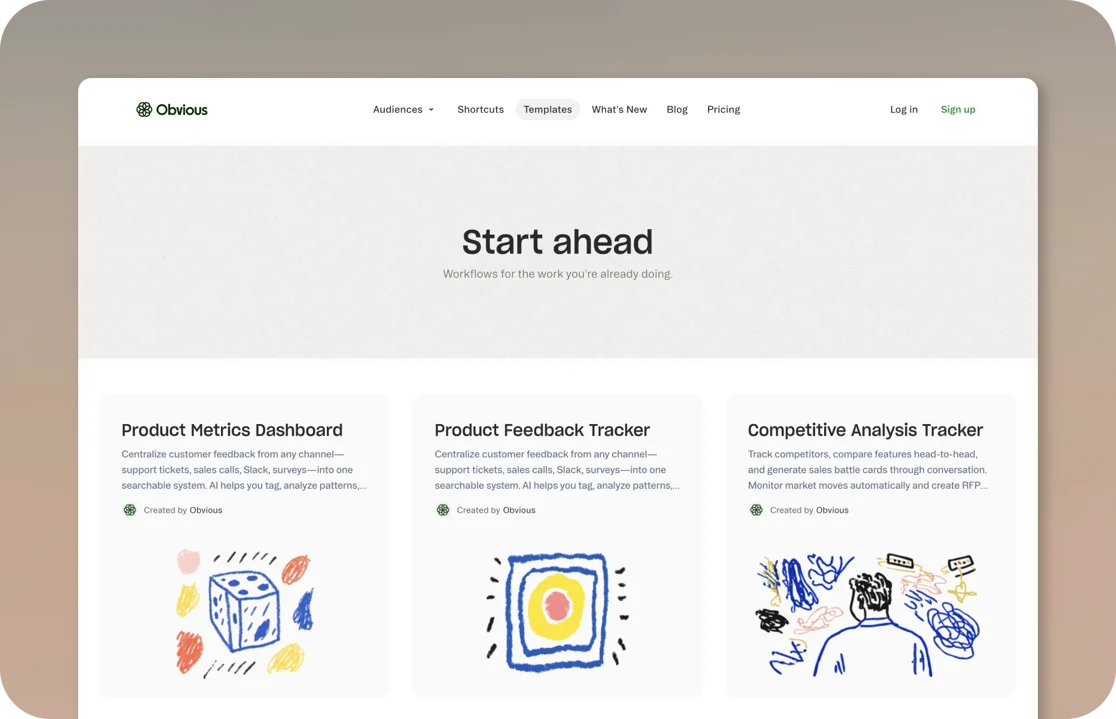
The template library replaces trial and error with ready-made structure. Choose a template for your project type, then customize it as you go.
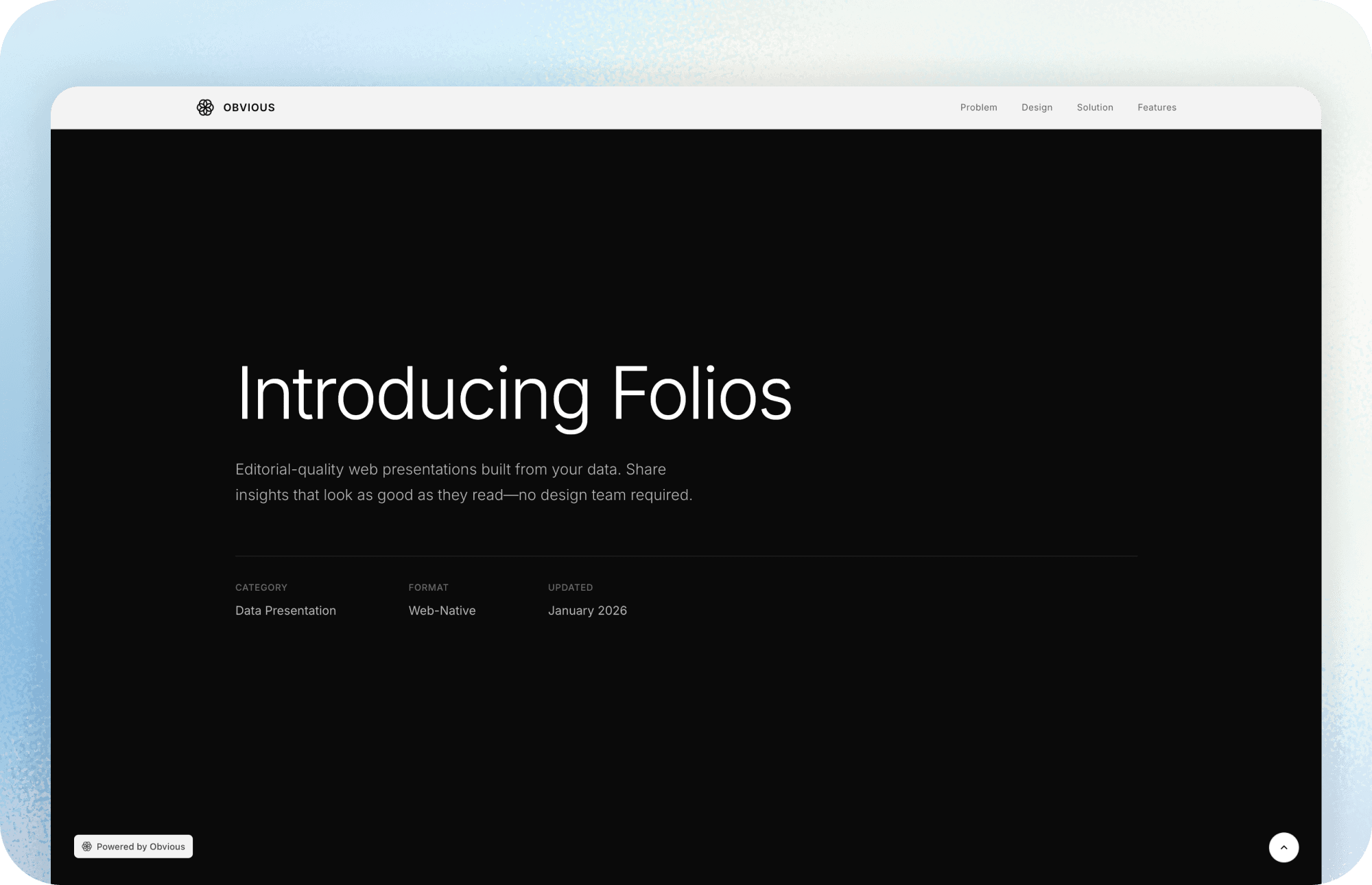
Folios turn your work into shareable presentations that scroll like a website. Replace PDFs and slide decks with interactive sites that combine visuals and narrative.
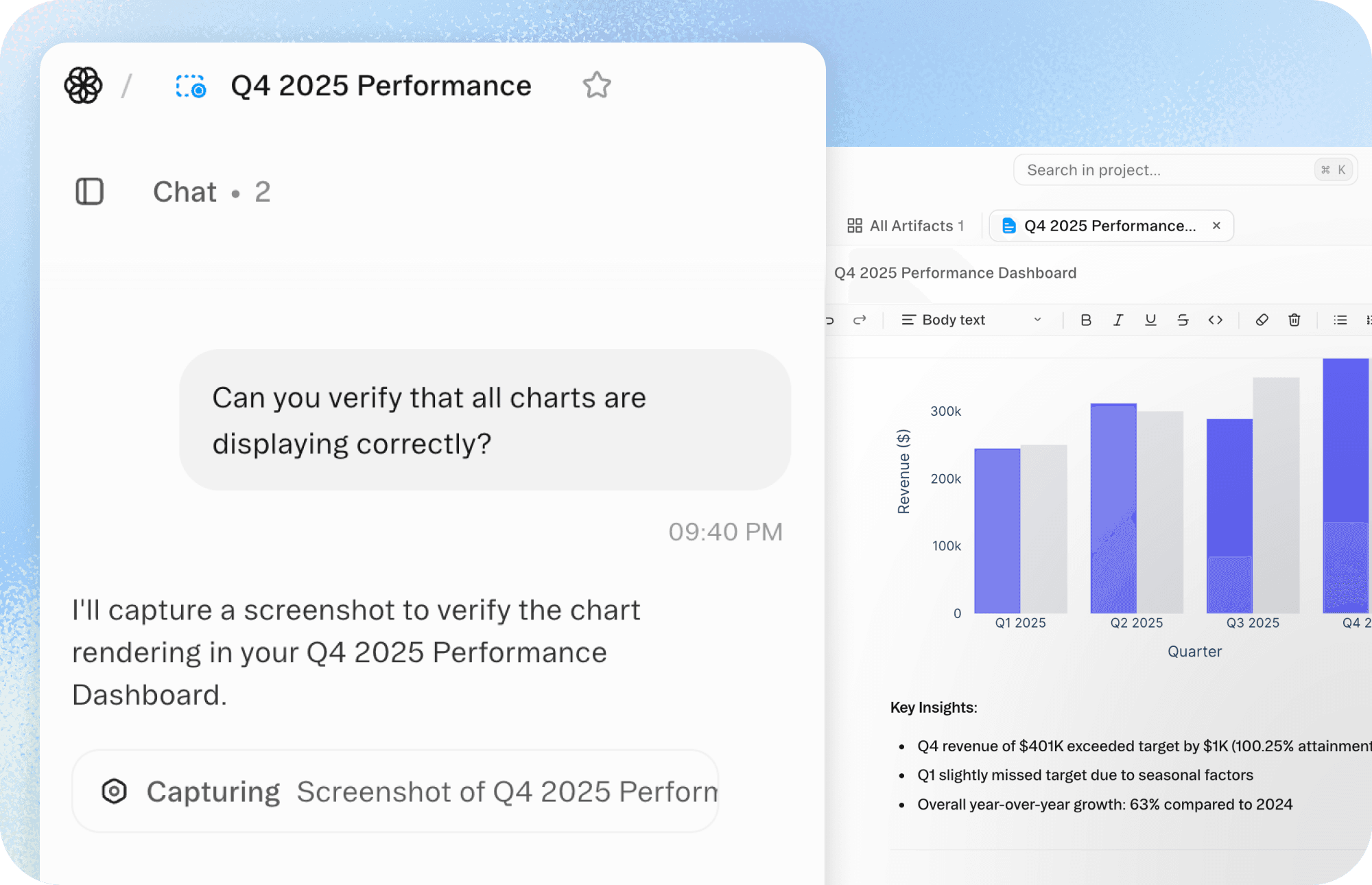
Obvious automatically captures screenshots to help the agent troubleshoot or better address user prompts.
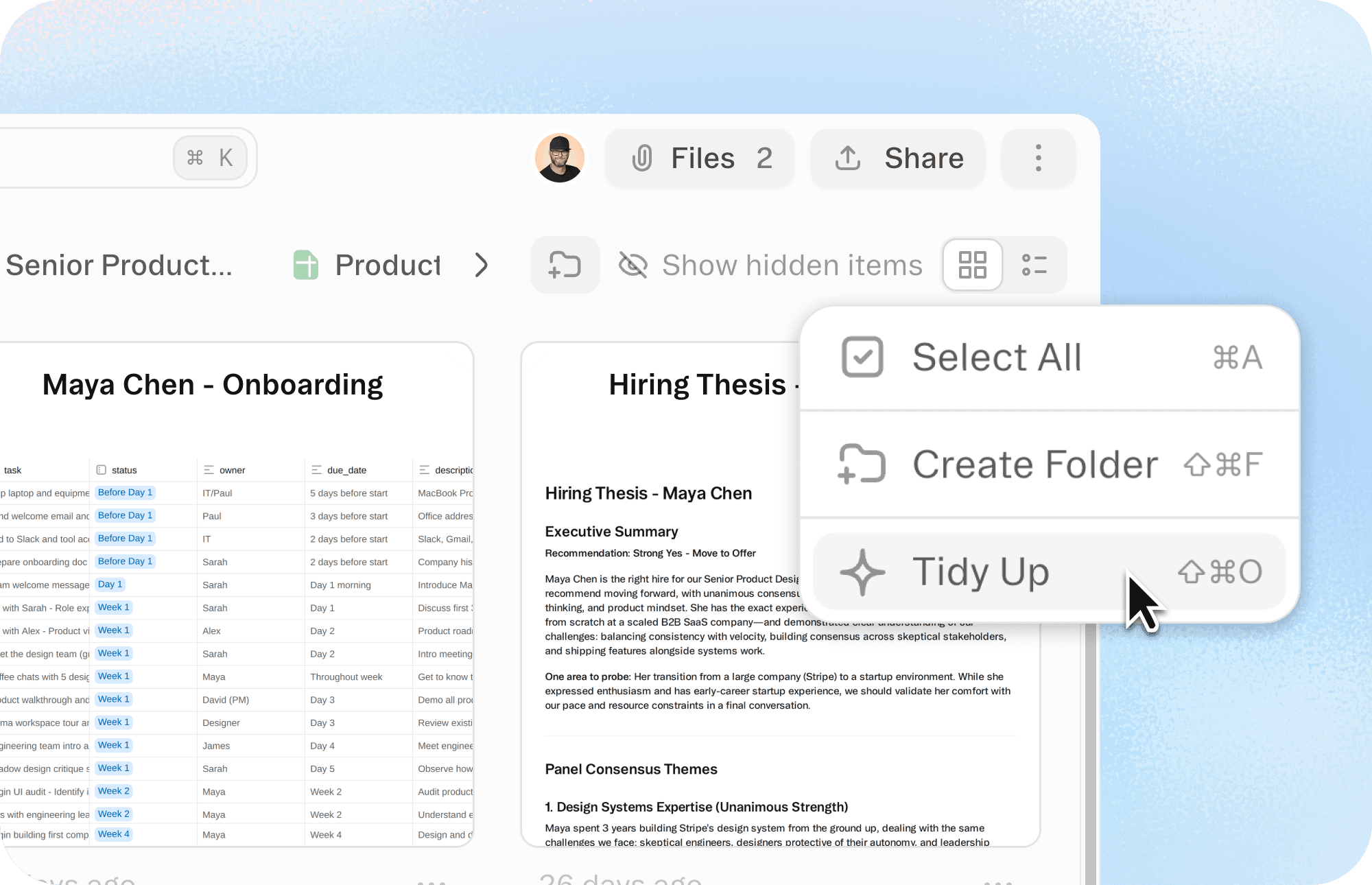
From within a project, right click and select "'Tidy Up" to have the agent organize the project artifacts and folders for you.
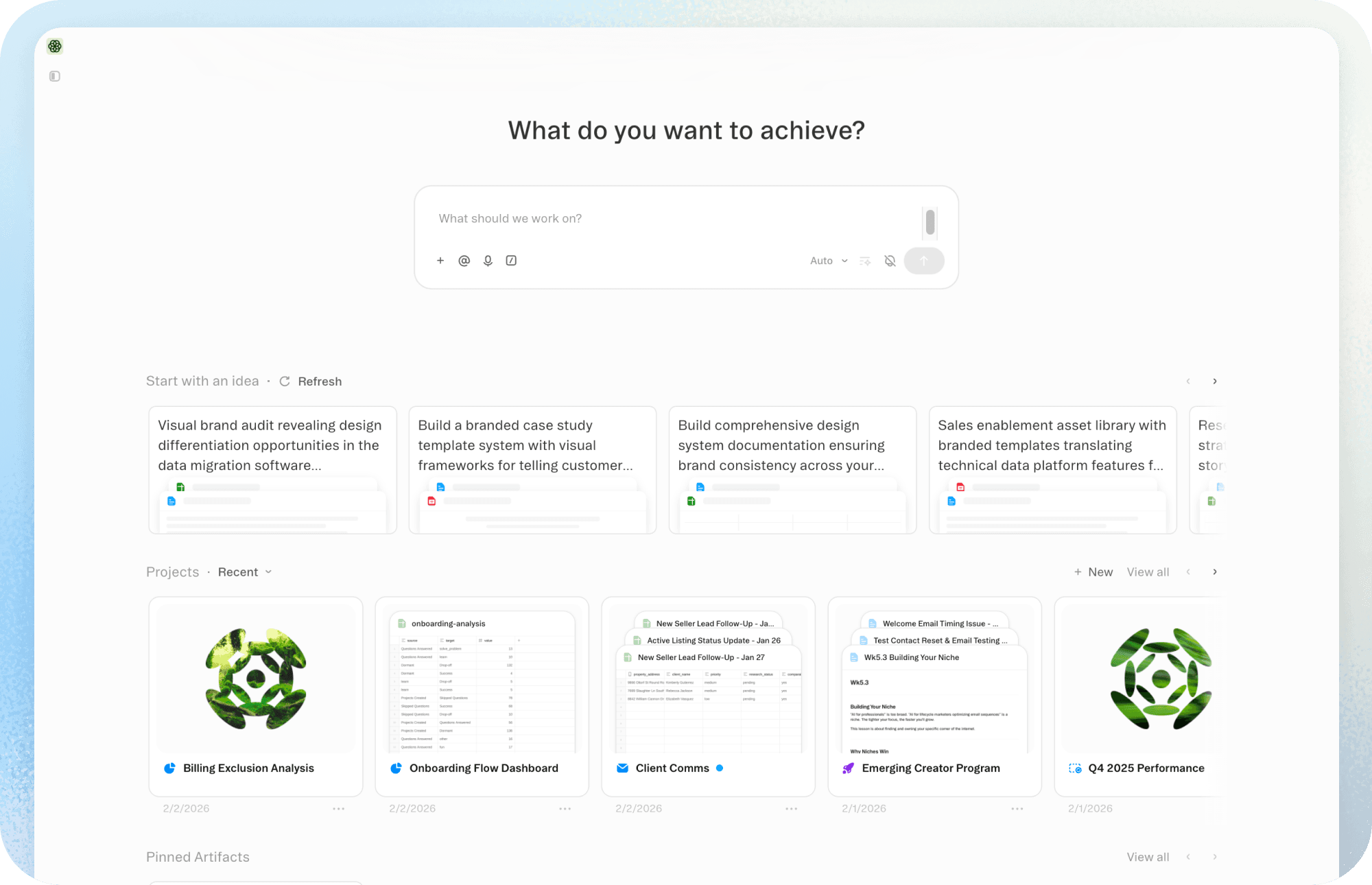
The Obvious home screen has gotten a refresh. You can now access recent or favorite projects and pinned artifacts as soon as you land in the app.
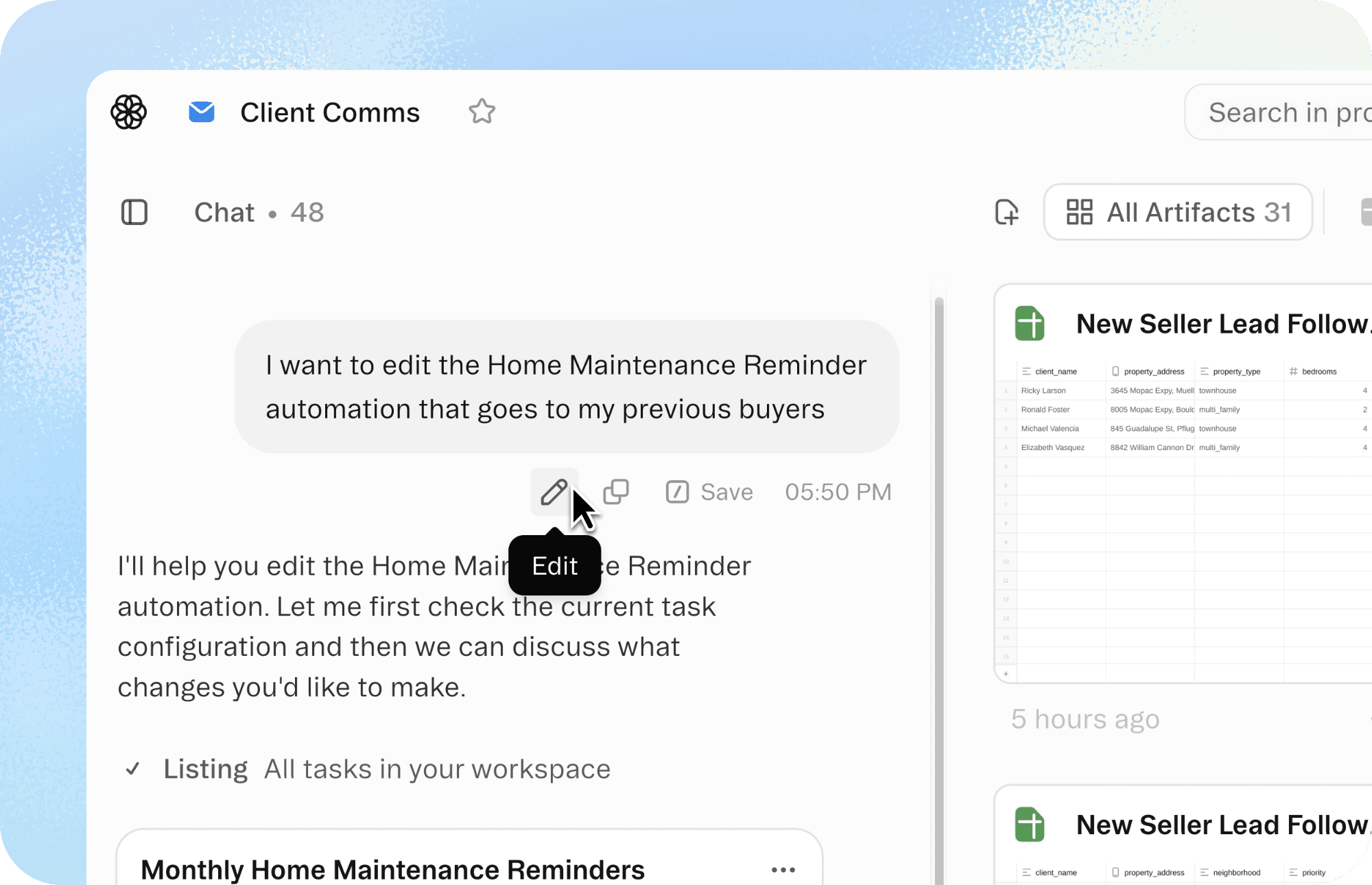
You can now edit any past prompt in your chat thread and re-run it—no need to copy-paste into the chat box.
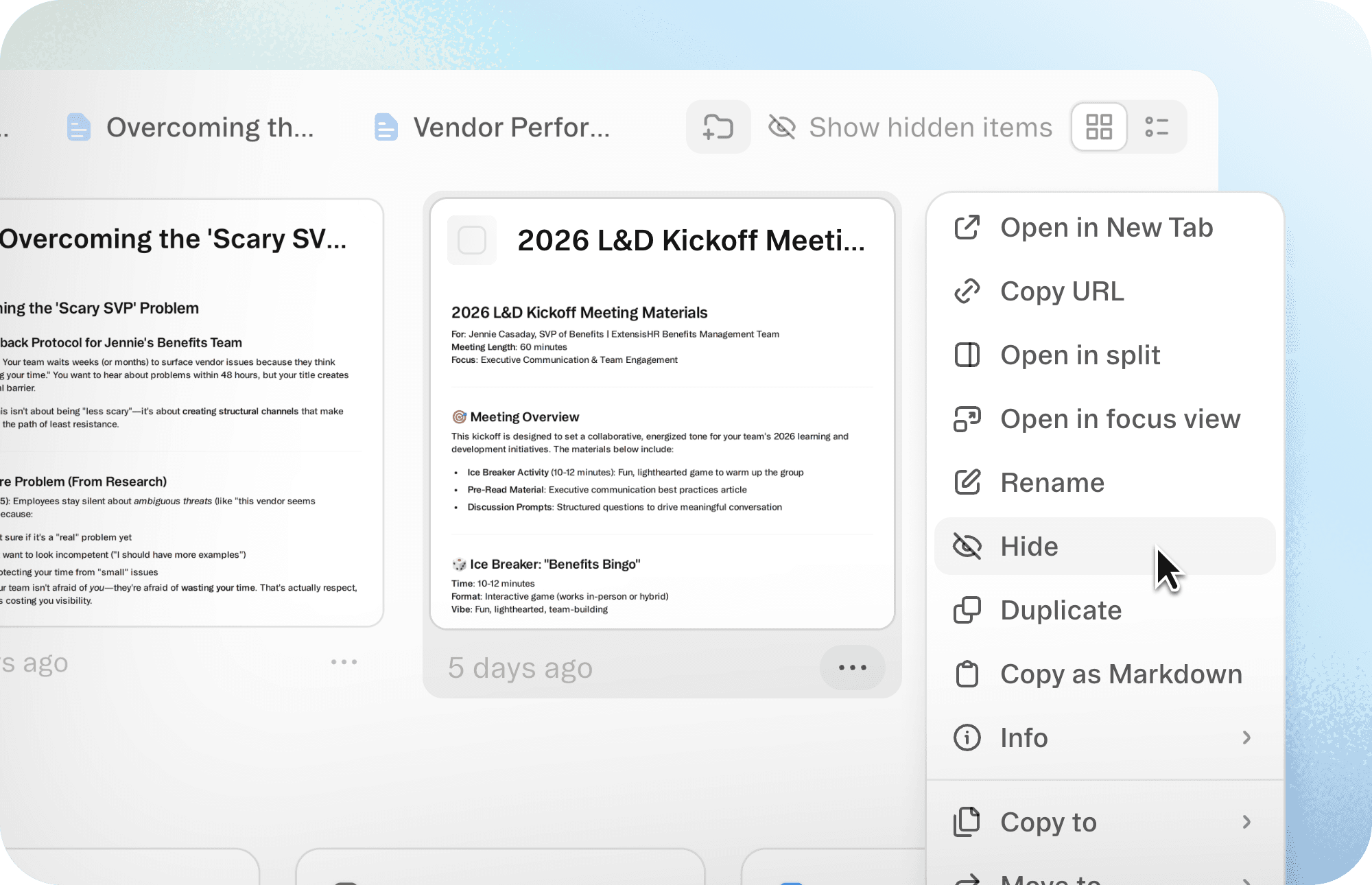
Hide completed work or old versions or work you aren't ready to share. You'll be able to access and unhide those artifacts at any time.
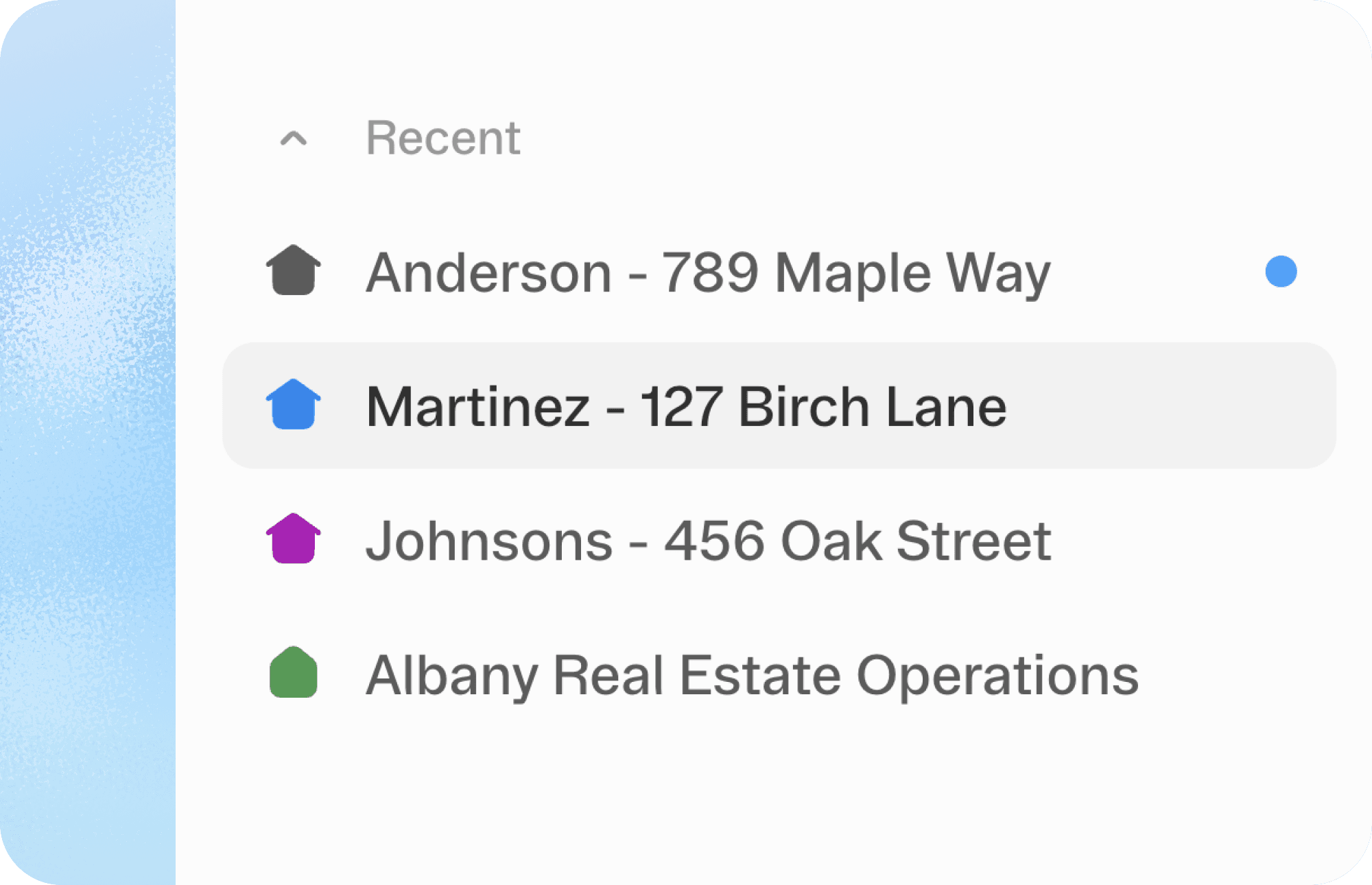
You'll now see a blue dot next to projects, artifacts, or threads where there are unread agent updates.
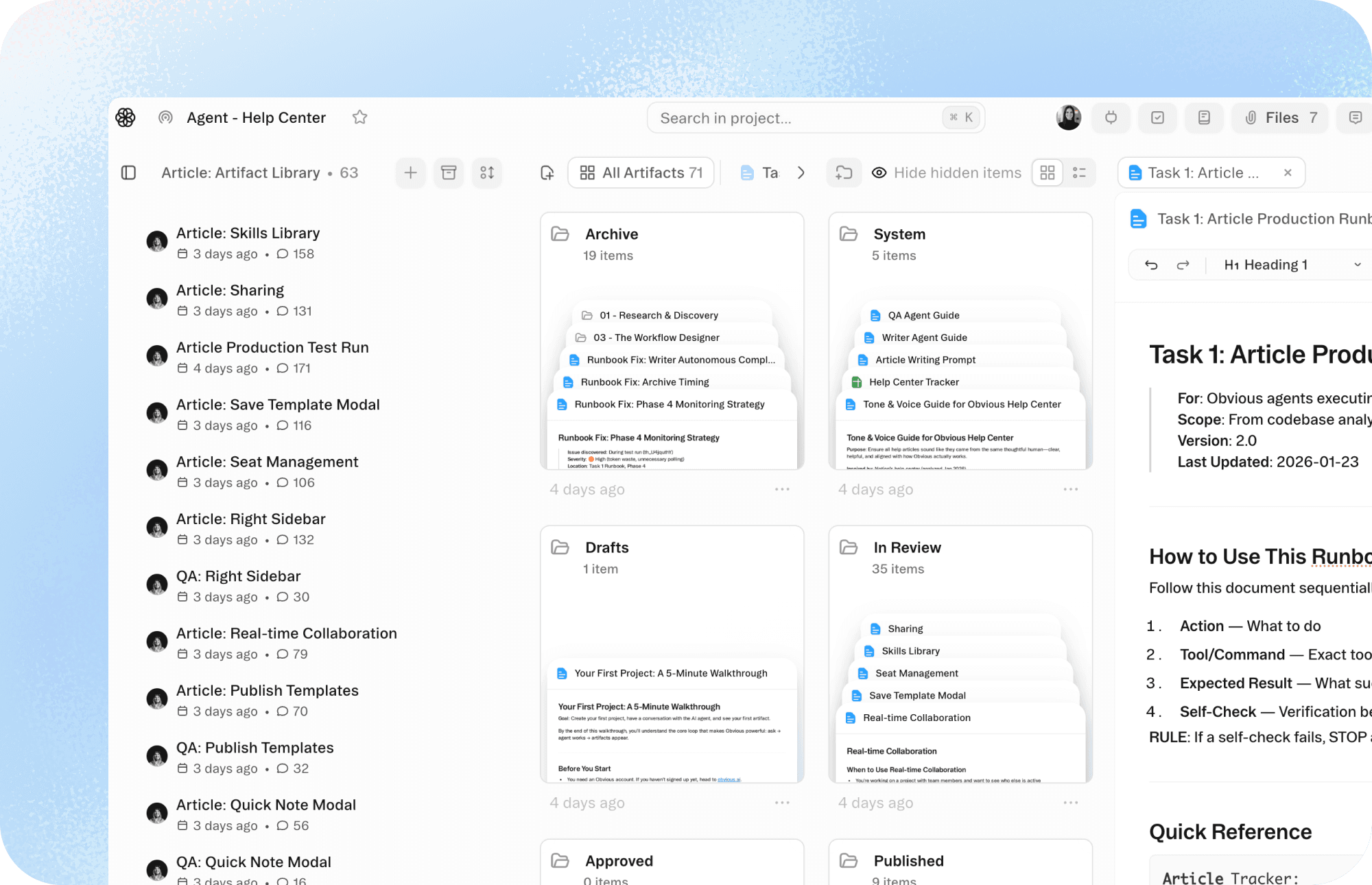
When you ask for something complex, the agent can now spin up sub-agents to tackle different parts at once. You'll see their progress in separate threads, and everything gets pulled together when they're done.
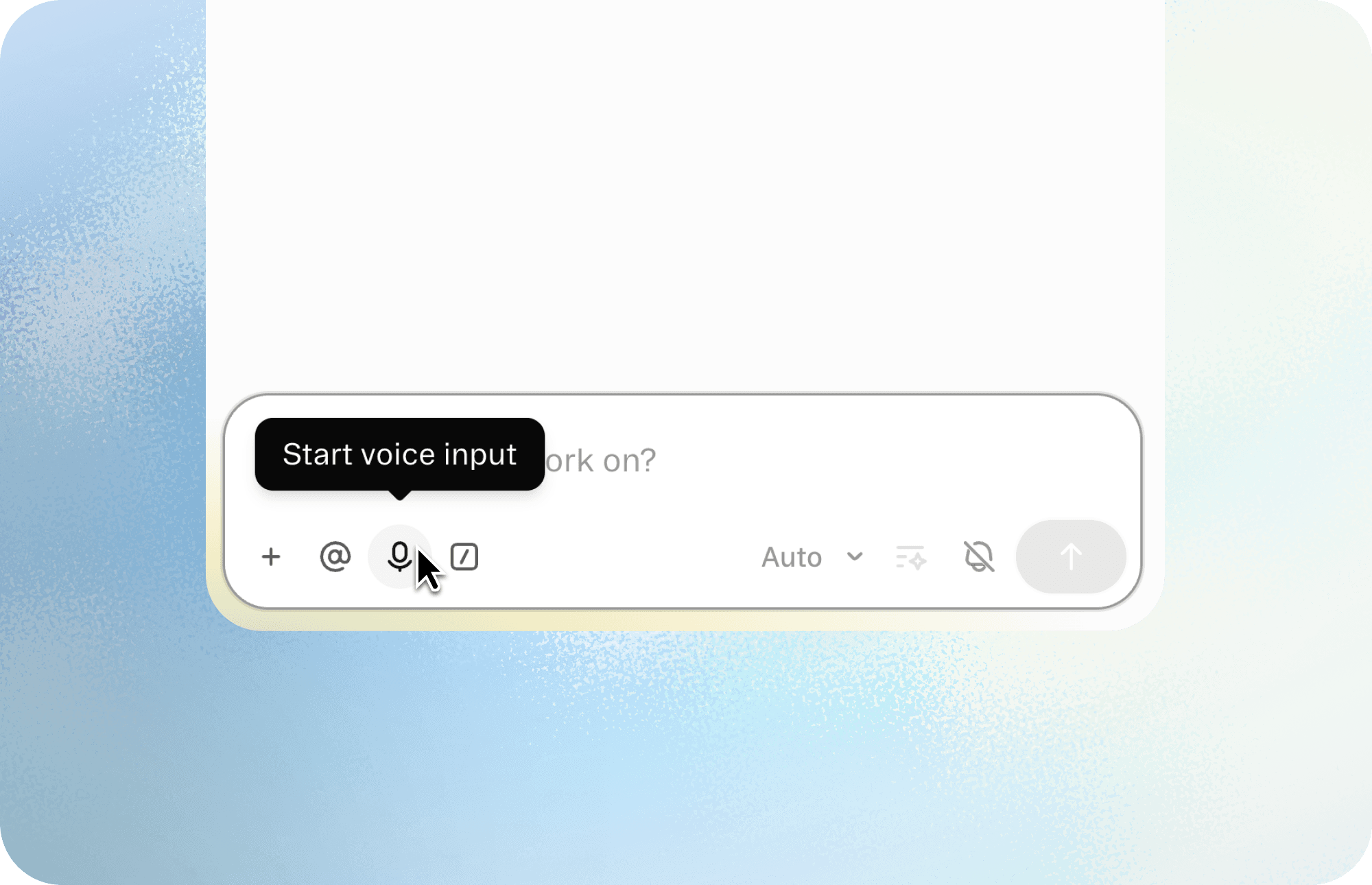
Prompt or provide context to the agent by voice. Just click the microphone icon next to the chat box and begin talking.
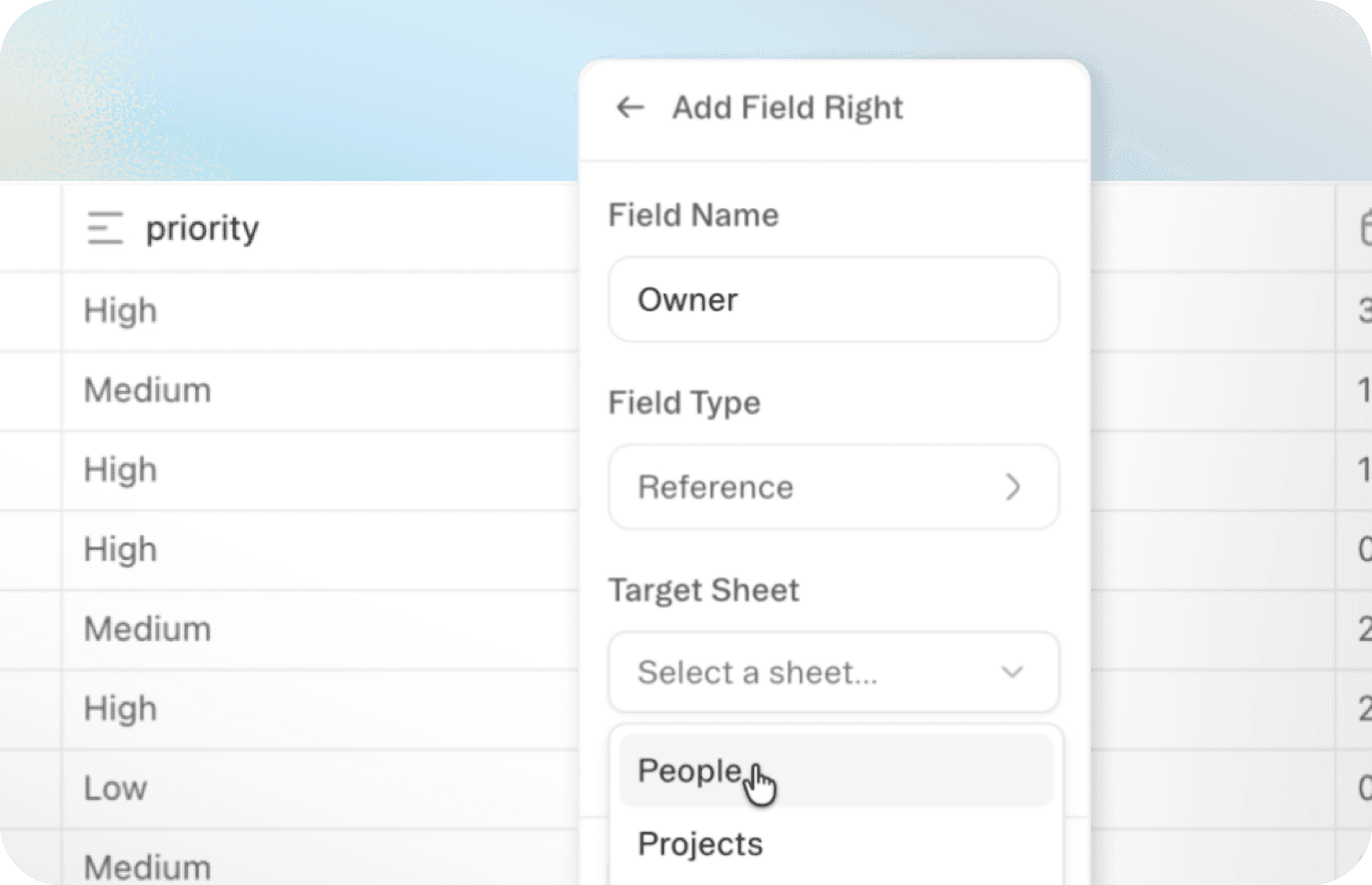
Reference fields let you connect related data—like IDs in a Customer sheet and orders in an Orders sheet—to keep everything perfectly in sync.
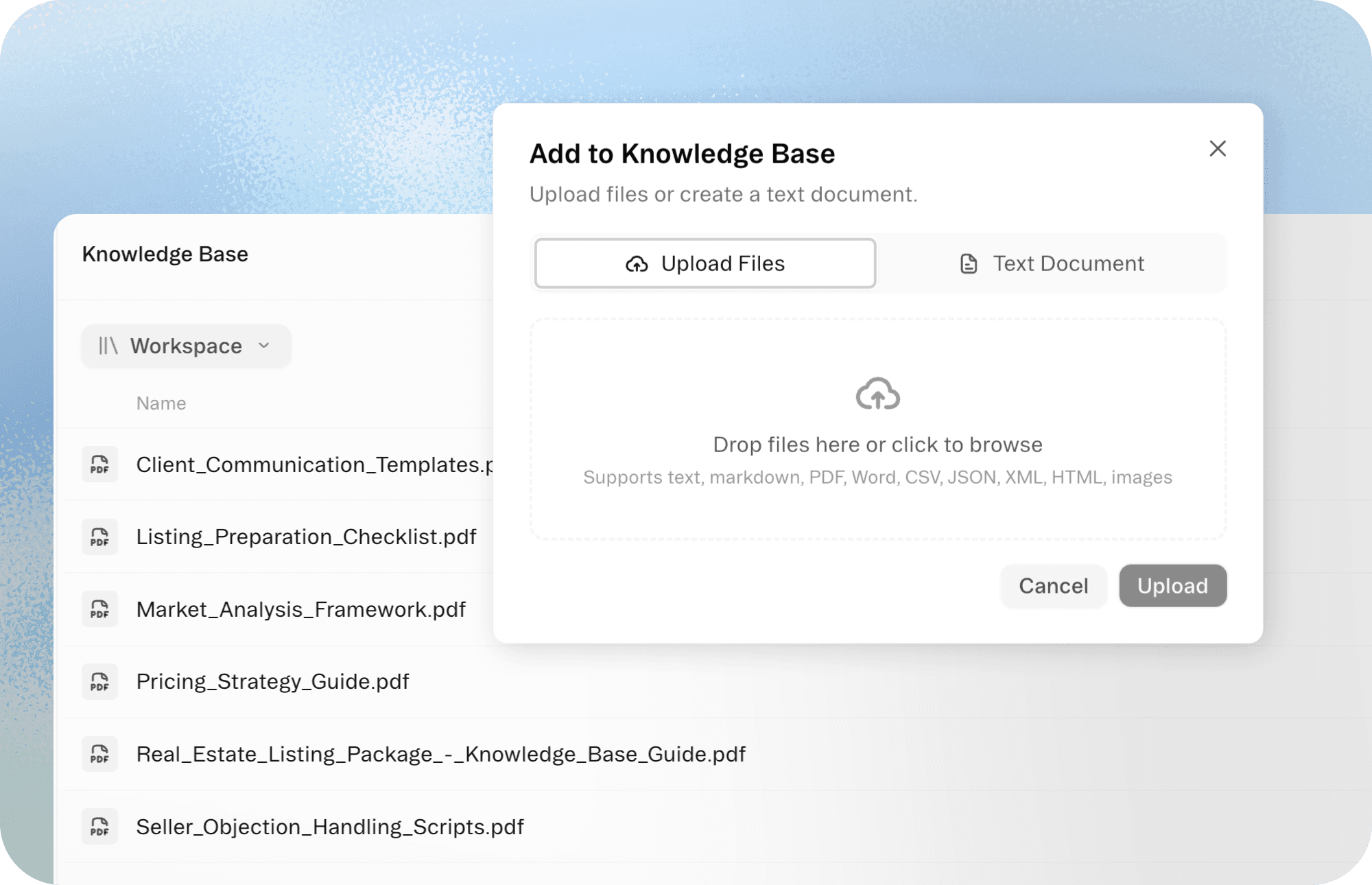
Upload your files—like training materials, brand guidelines, or help centers—to provide persistent context to the agent across every project.
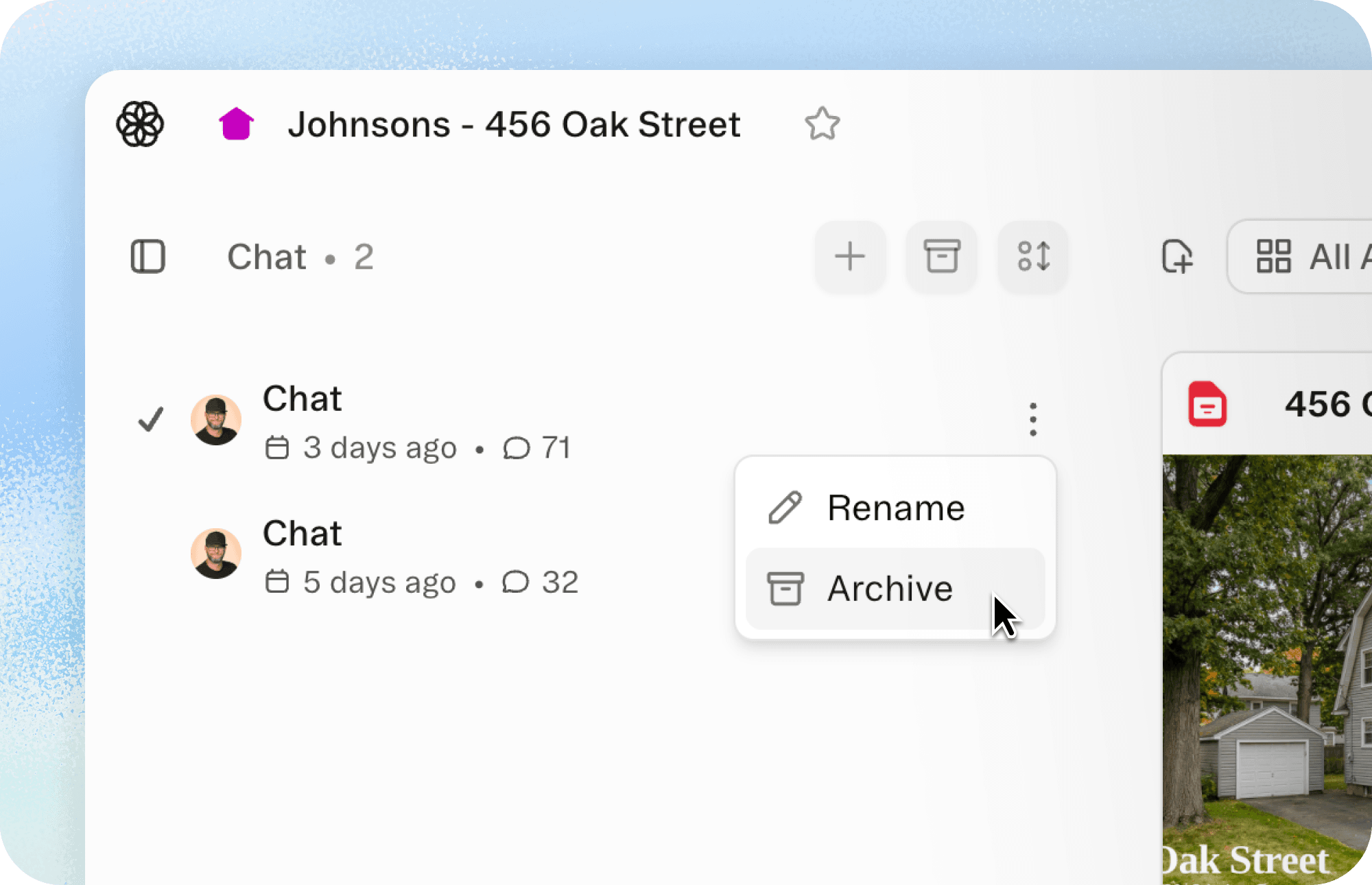
You can now archive threads within a project to keep your chat history clean and your most important conversations accessible.
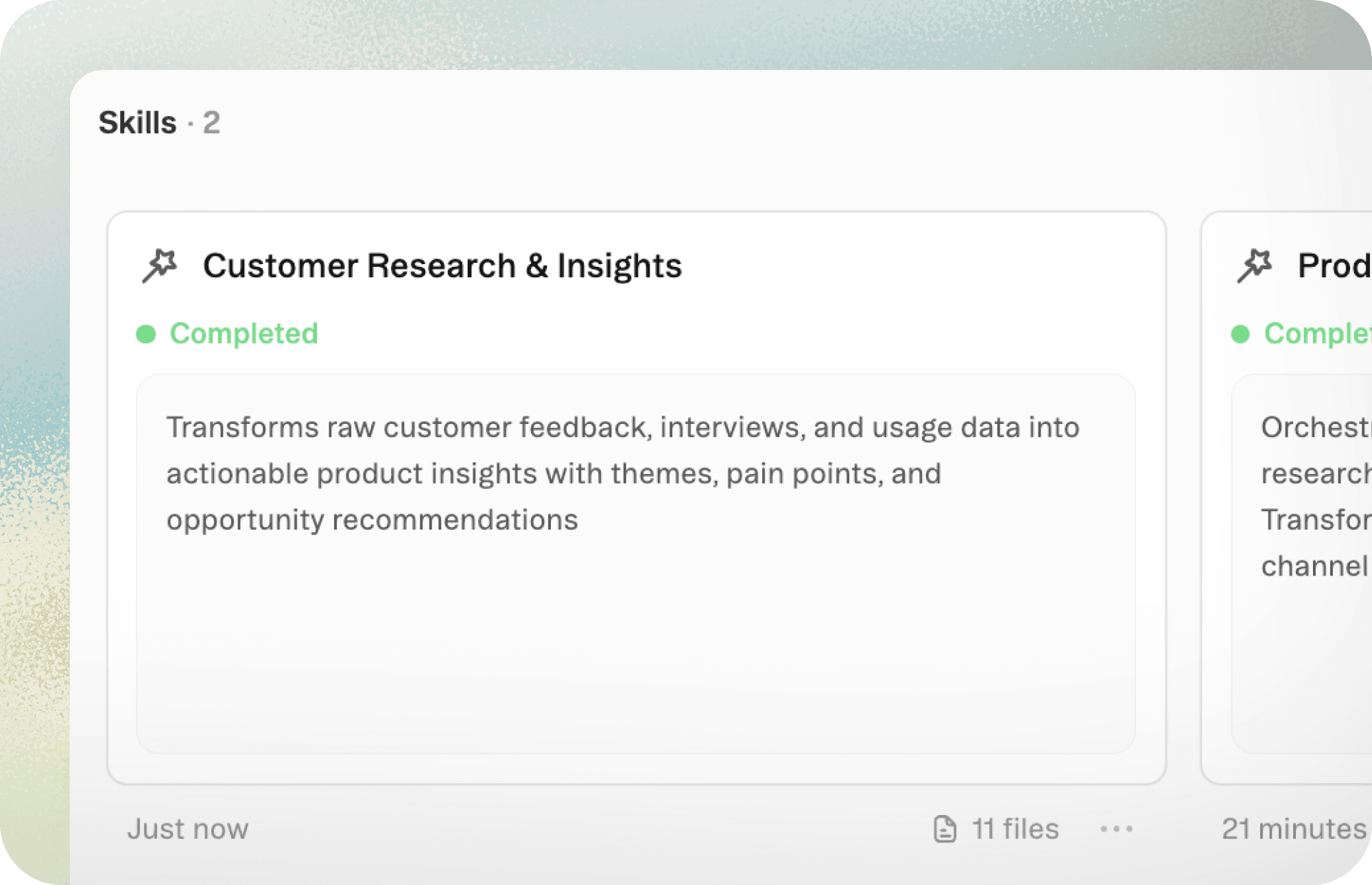
Give Obvious specialized knowledge—like steps in a workflow or success criteria—and it will create a custom skill that can be applied to future projects.
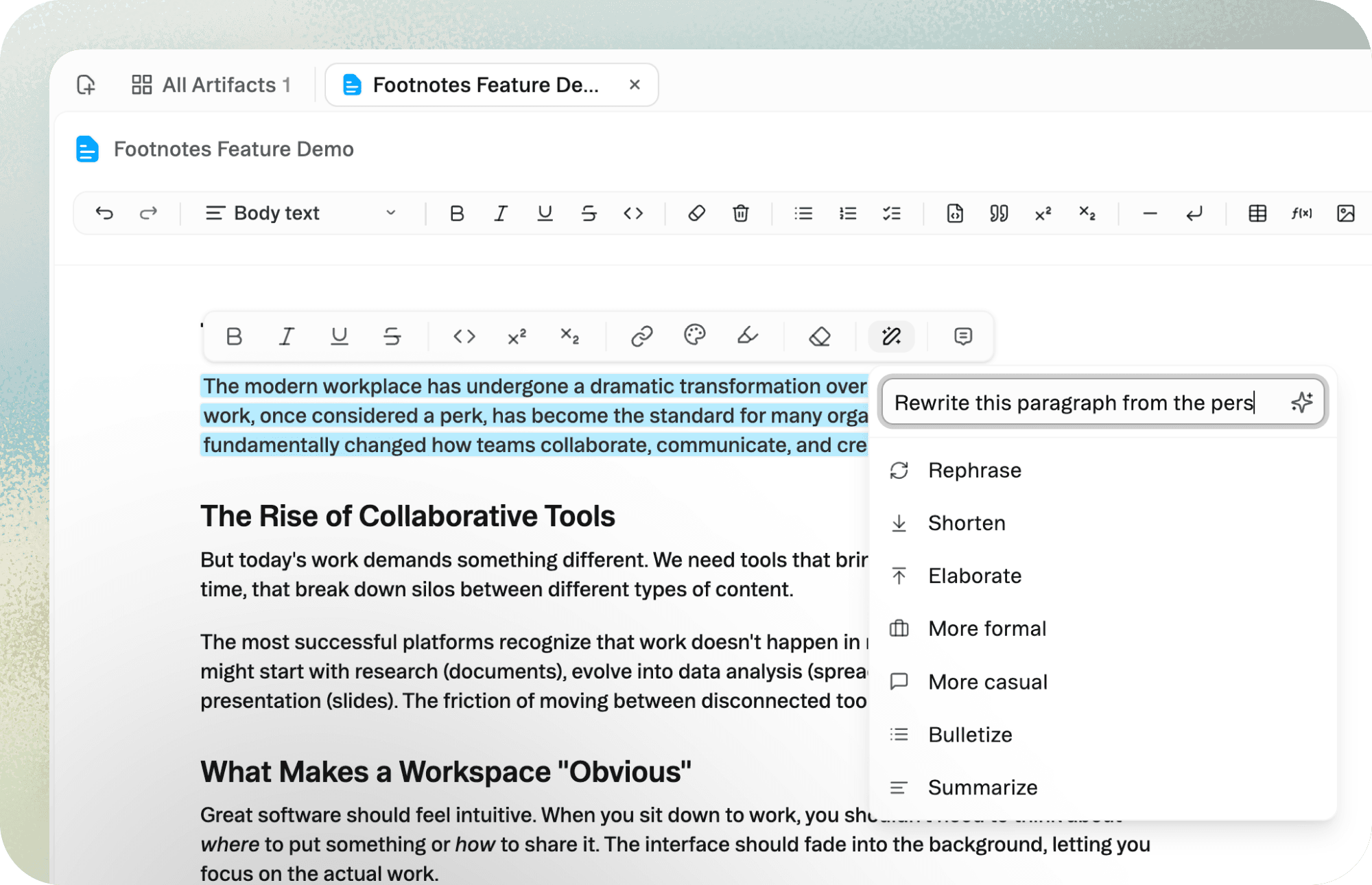
Select any text in a document to edit it on the spot. Choose quick edits like "Shorten" or "More formal," or describe the change you want the agent to make.
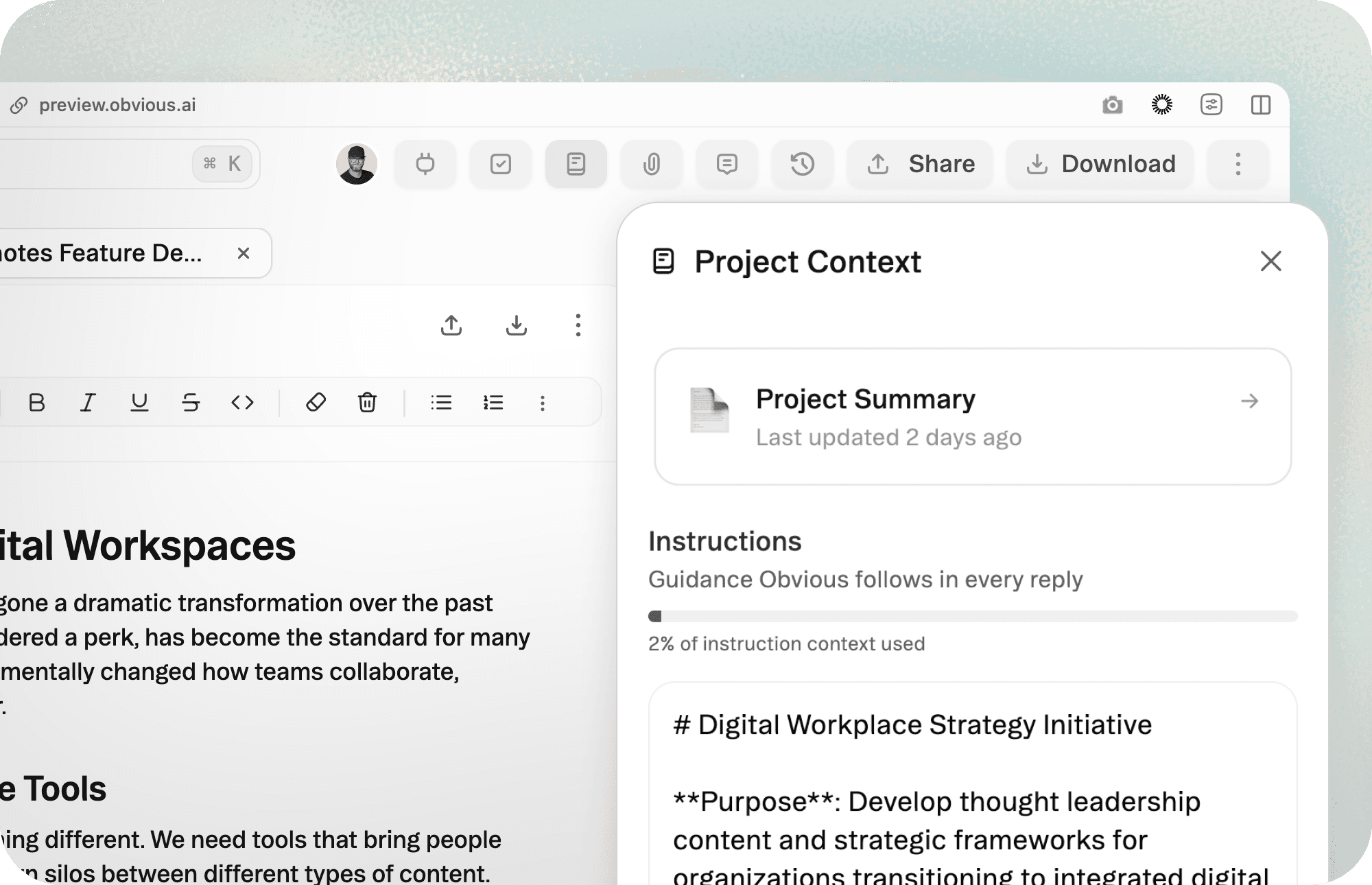
Project Summaries stay current as work moves across threads. Always know the most accurate summary of what's been done, what's in progress, and what's next.
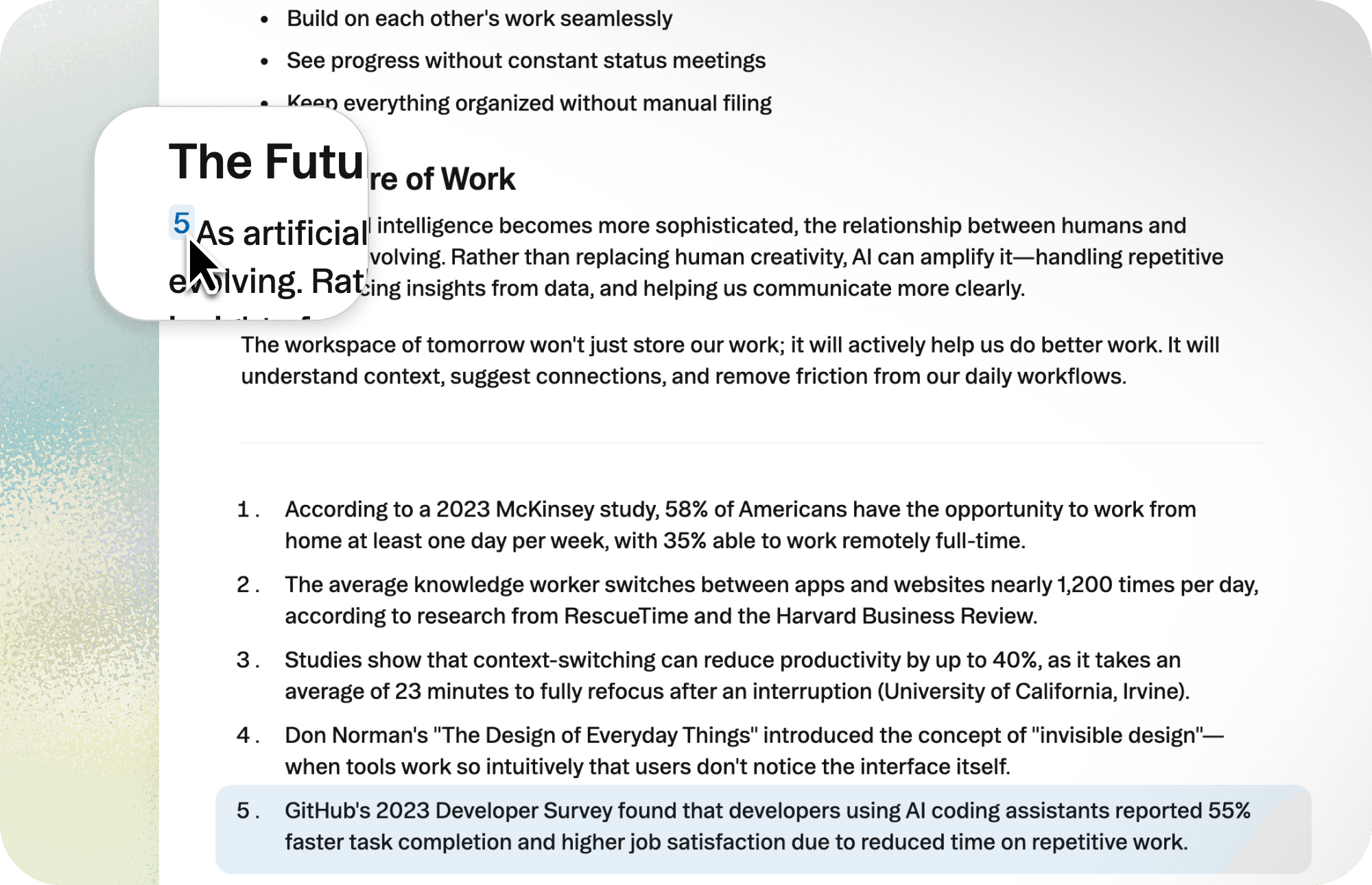
Add footnotes using markdown or have the agent create citations for research it produces. Obvious can organize your sources and generate properly formatted footnotes in seconds.
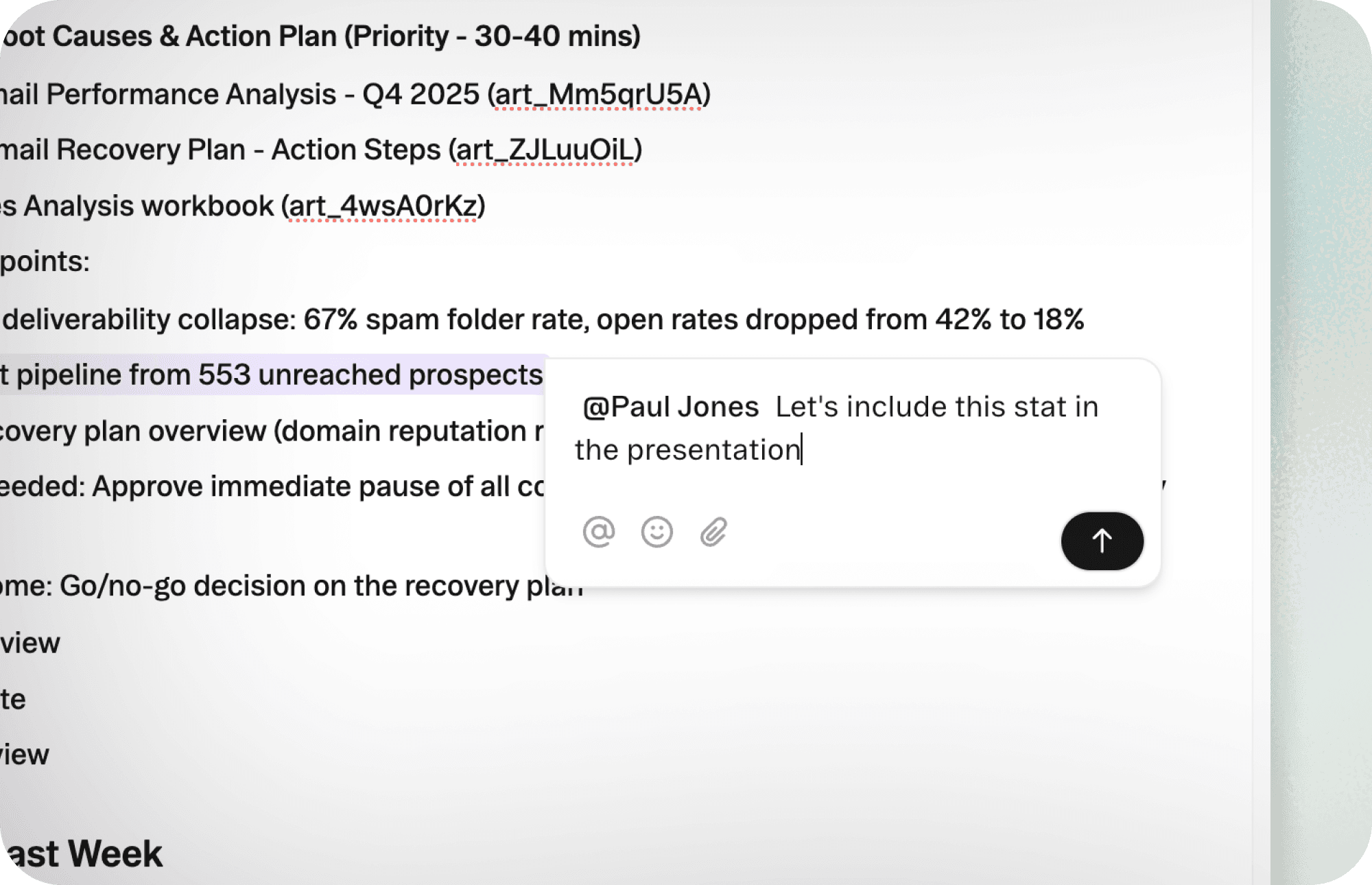
Comment directly on documents and sheets to give feedback or flag issues. @ mention teammates to pull them into the conversation.
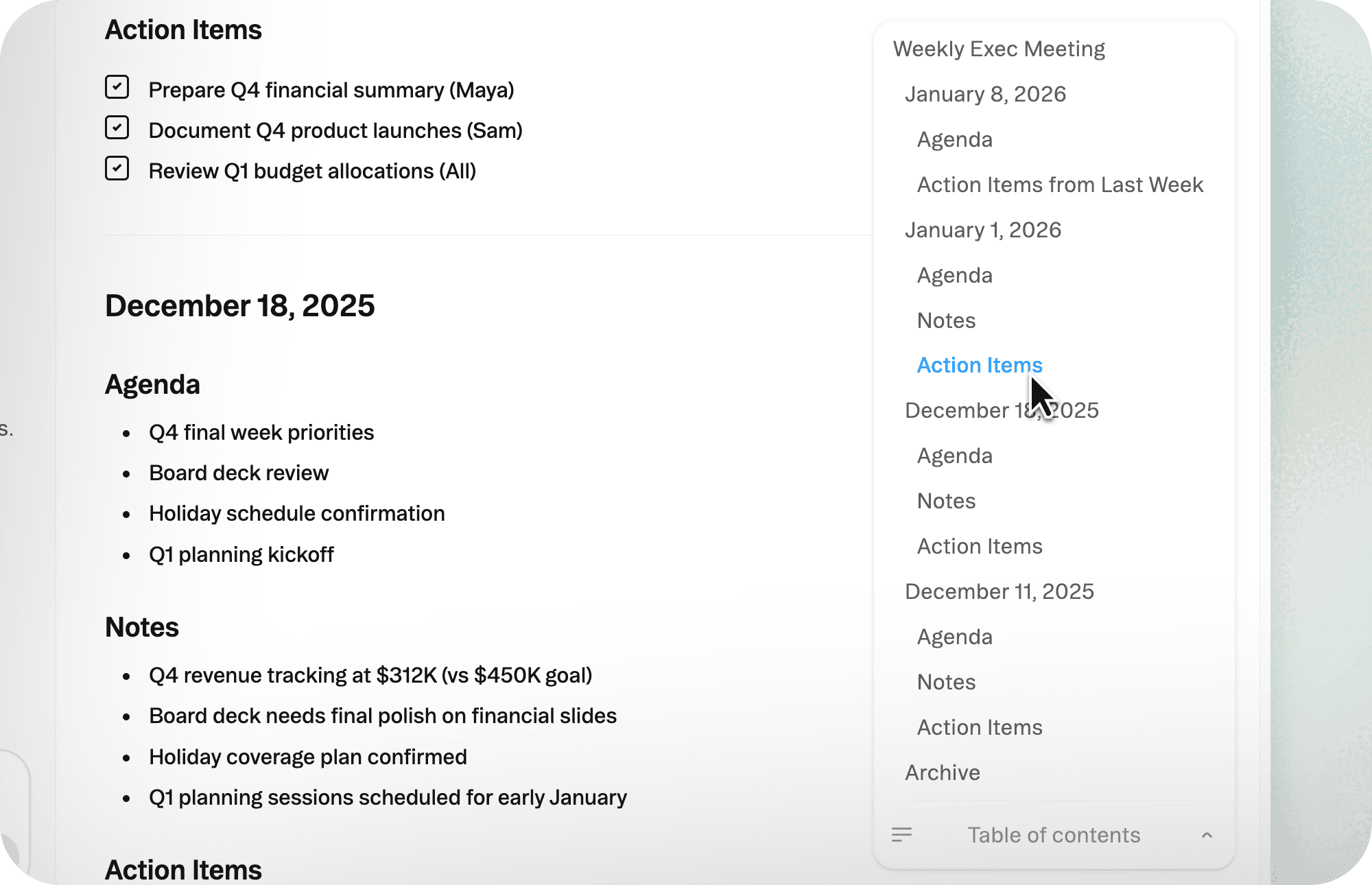
Obvious now automatically generates Table of Contents for navigation within documents with headers. Jump to any section with a single click instead of scrolling through pages.
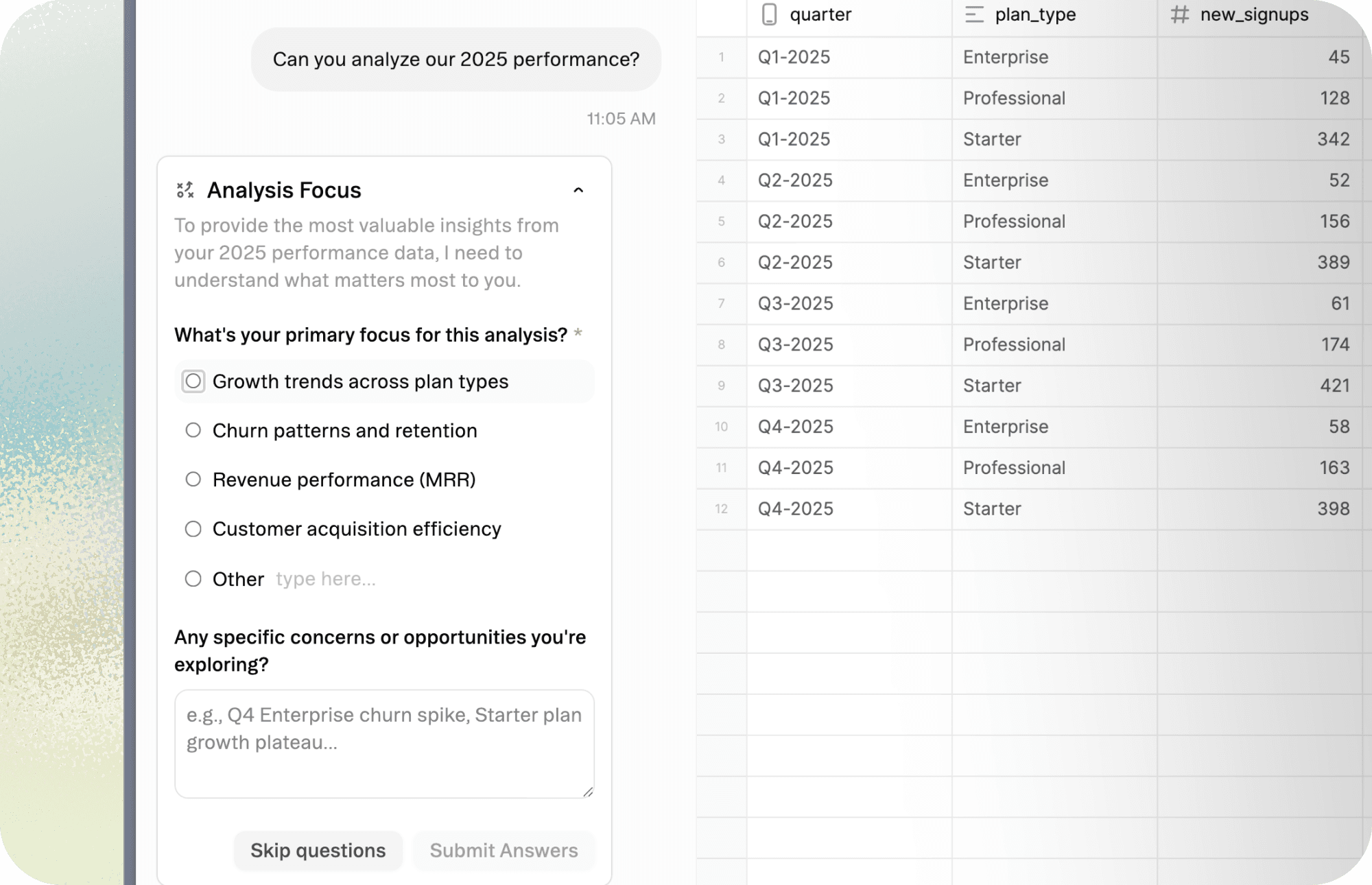
When user input is needed, Obvious creates questions in a survey format right within the chat. Provide the context or direction the agent needs with minimal lift.
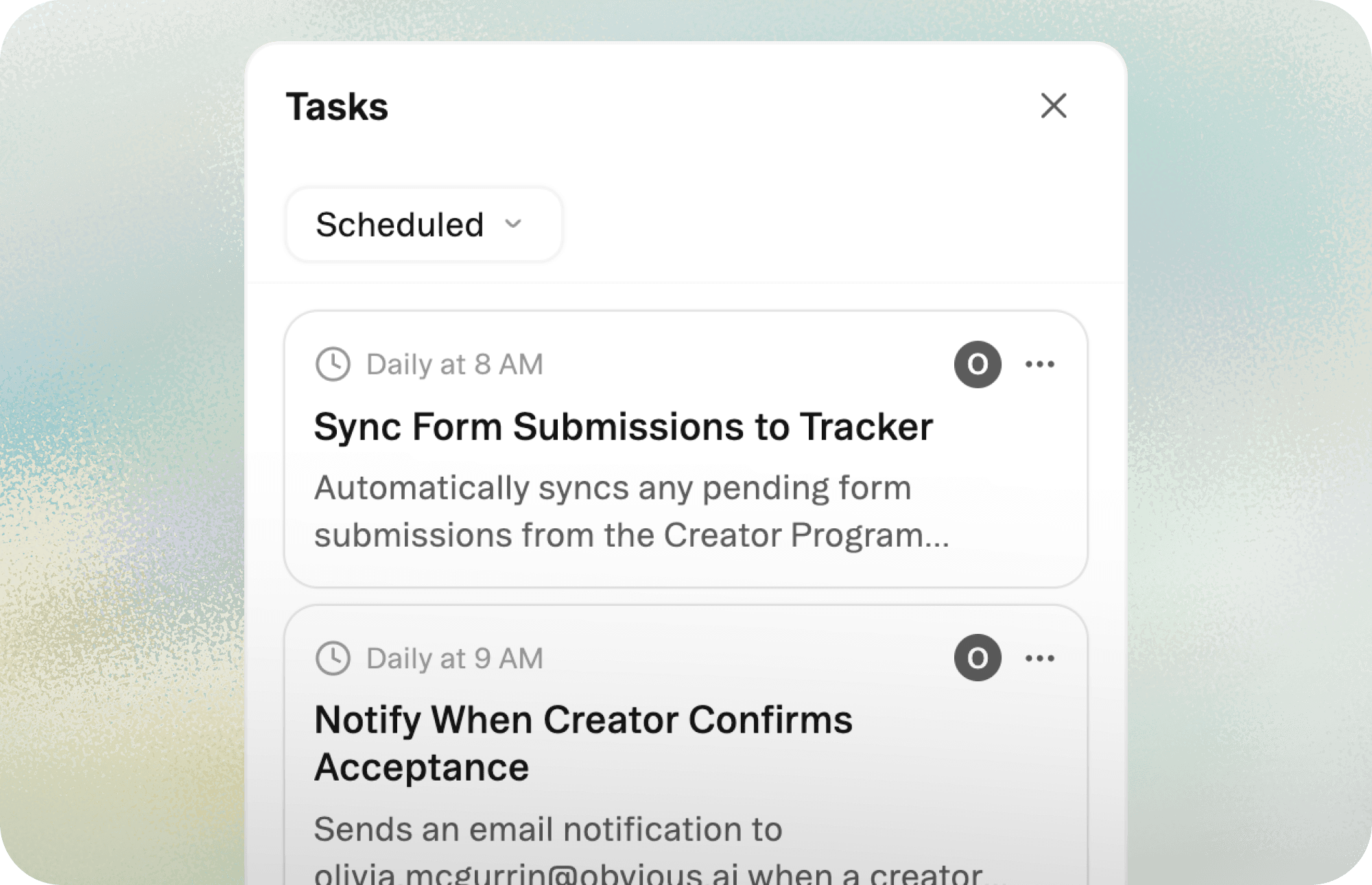
Schedule tasks to run on particular intervals, like daily or weekly. Tell the agent what action you want it to take (like generating a report) and at what time, and it'll create a recurring task and execute it autonomously.
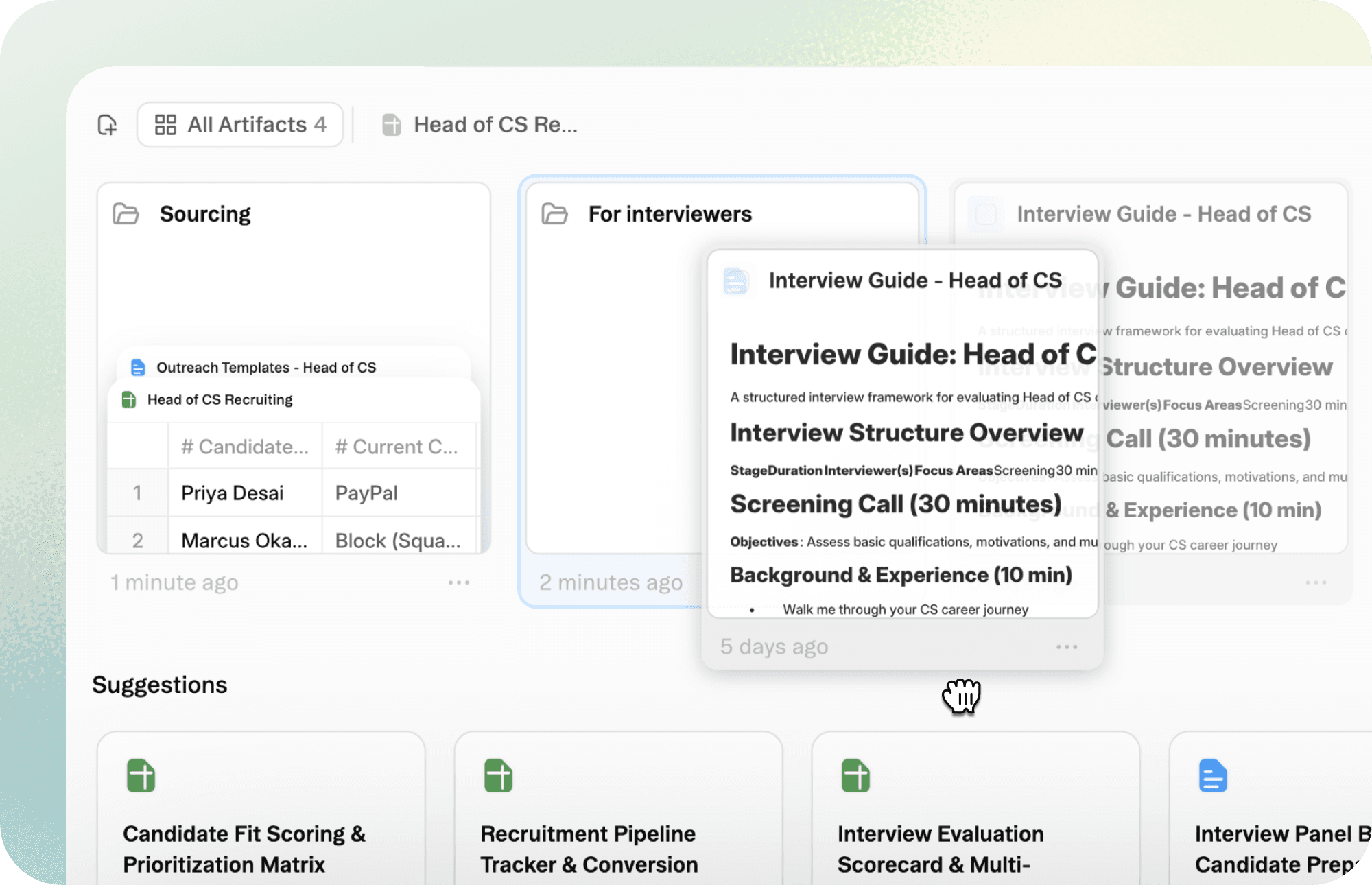
Artifacts you create can now be moved within and between projects. Relocate artifacts between projects by using the file menu or between folders by dragging them directly.
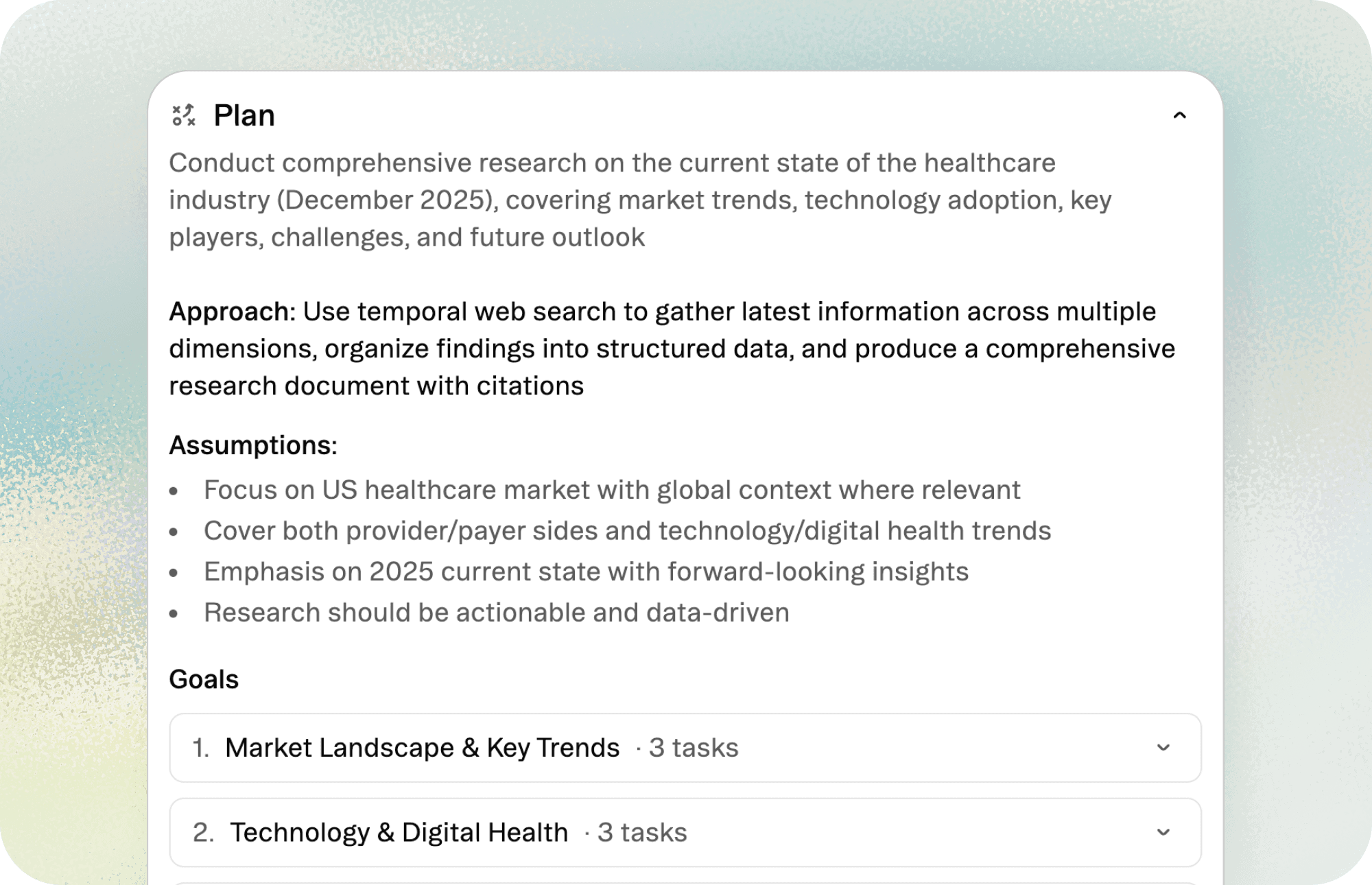
Plans get ambitious work organized while keeping you in control. For complex requests, Obvious will propose a plan for you to approve before the agent dives in.
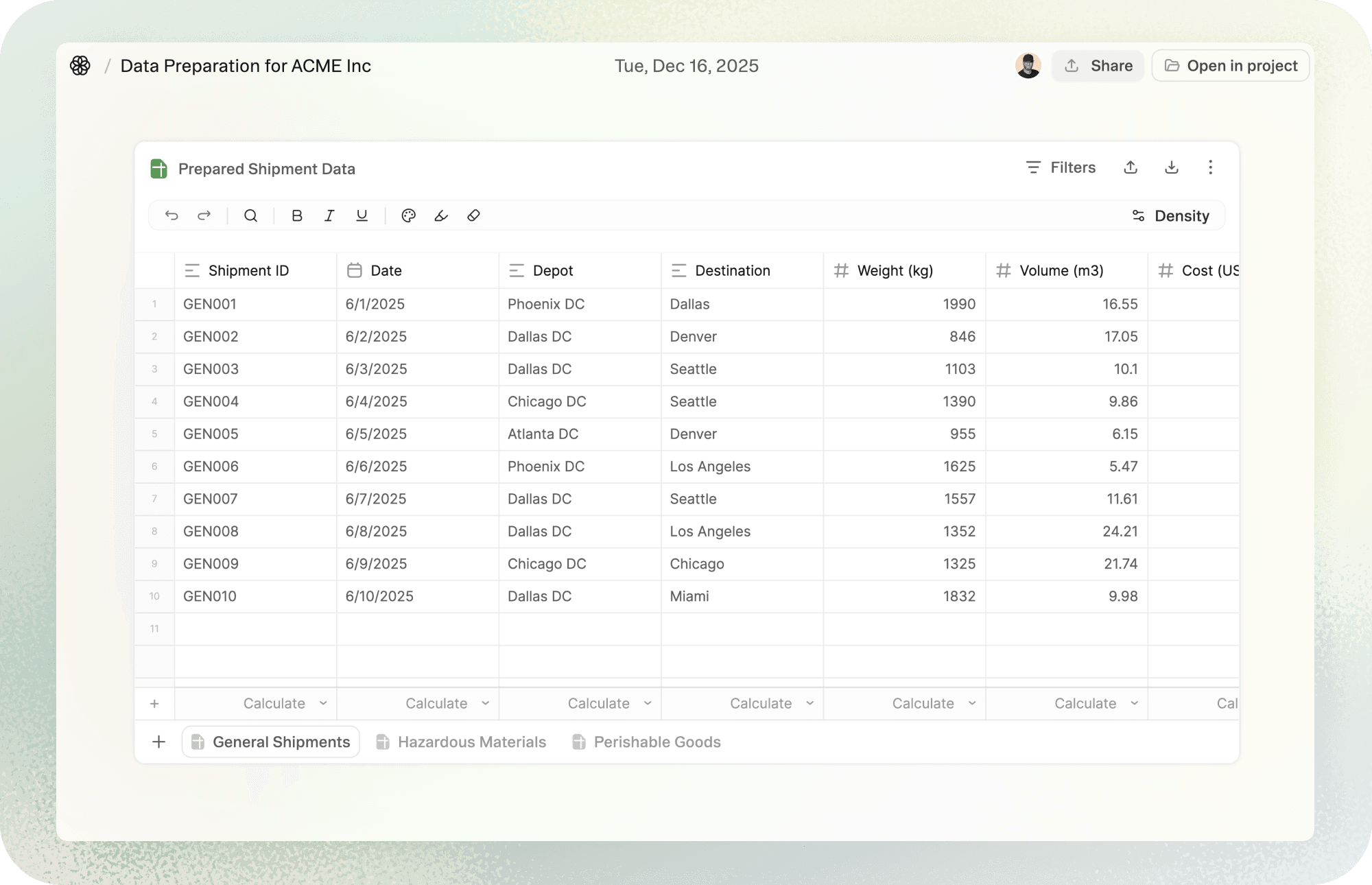
When you need to concentrate, the focus view clears everything else away. Click the three dots on the right of the toolbar and select "Open in focus view" to expand it to full screen.
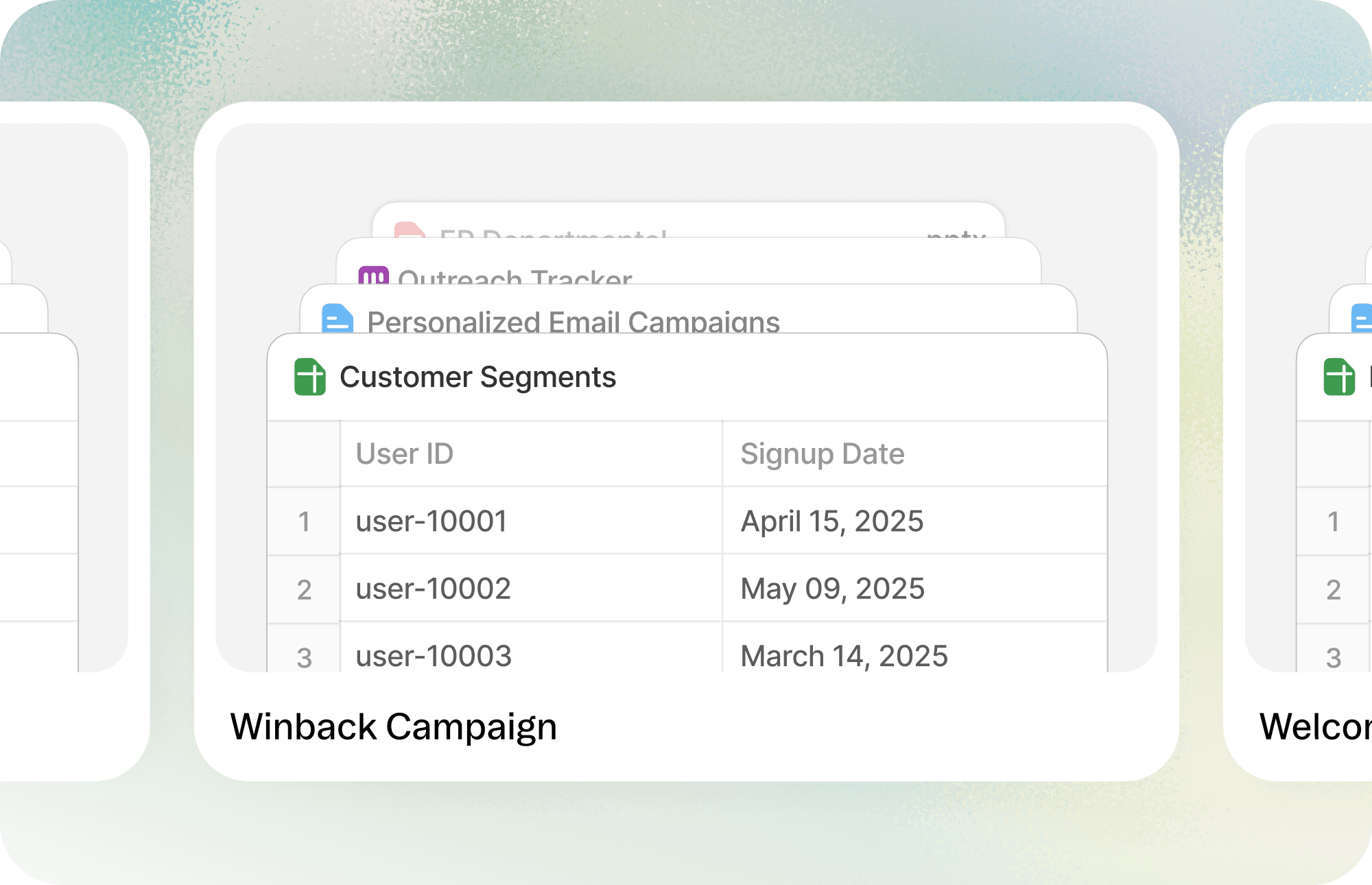
Create project templates so you’re never starting from scratch. Any project you create can be saved as a Template with its artifacts, folders, and context.
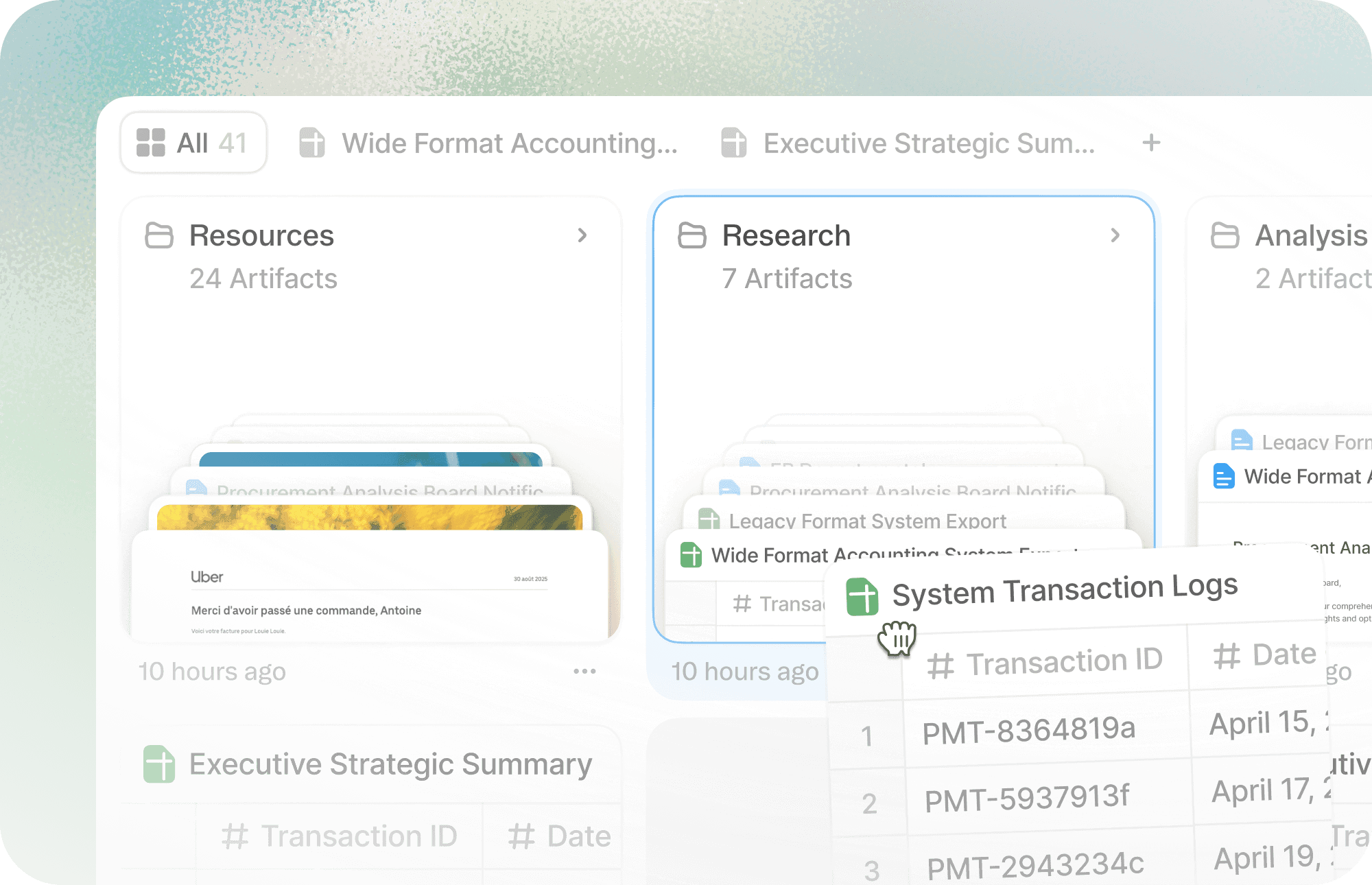
Stay organized as your projects grow. Use folders to group related artifacts, making it easy to find what you need in large or shared spaces.
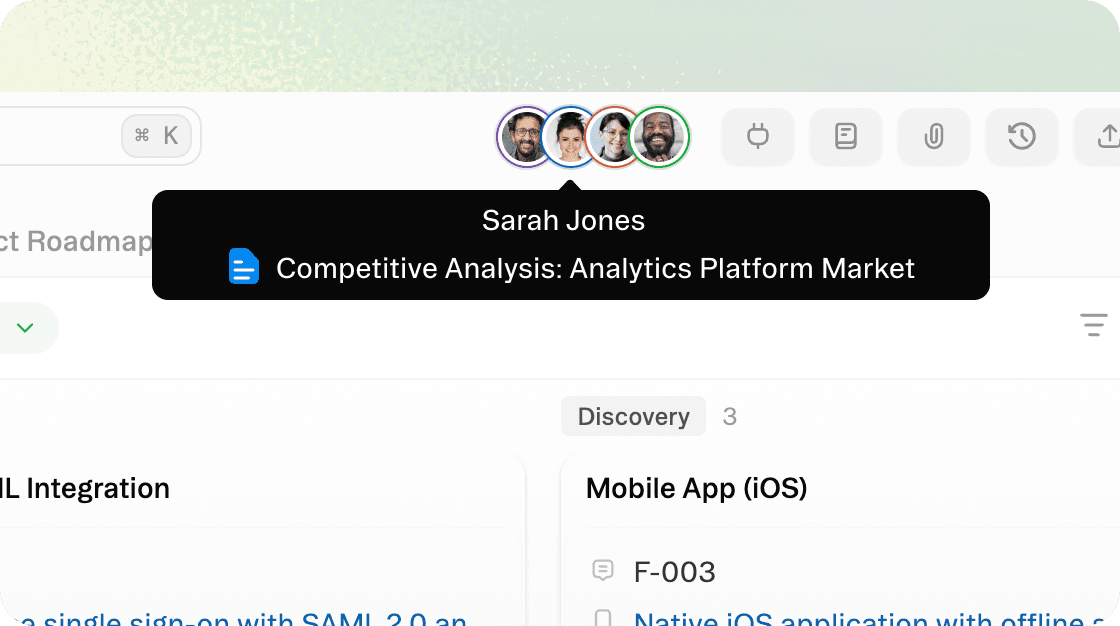
See who sees what. Presence gives you real-time visibility into who has access to your space so collaboration stays clear and transparent.
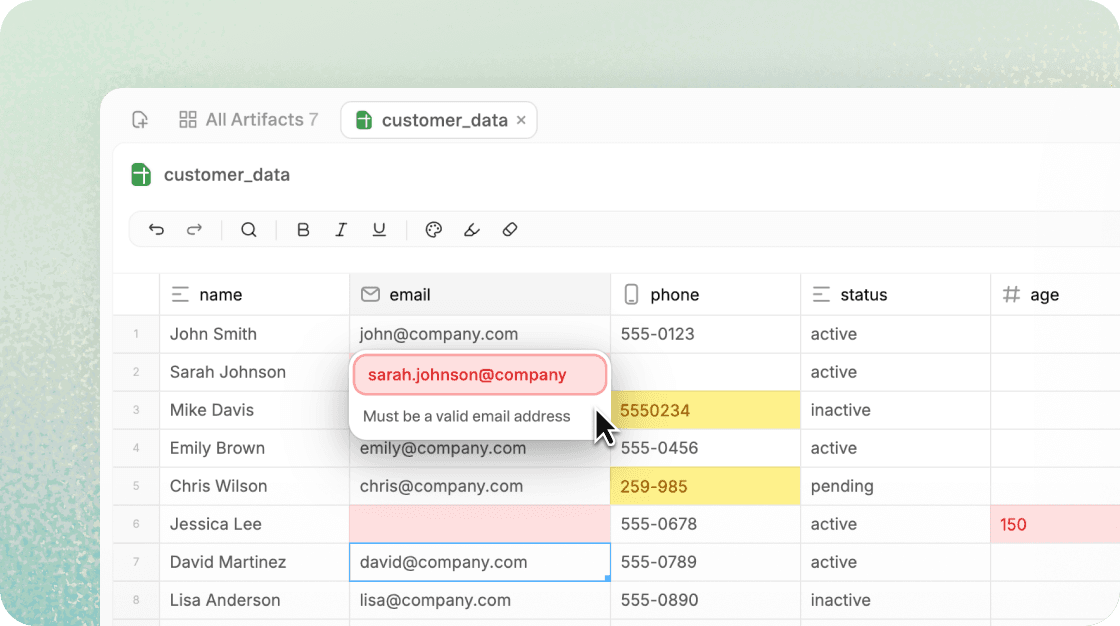
Tell Obvious what rules data should follow to avoid downstream issues. Errors and warnings will be then highlighted so you can collaborate with the agent to resolve them.
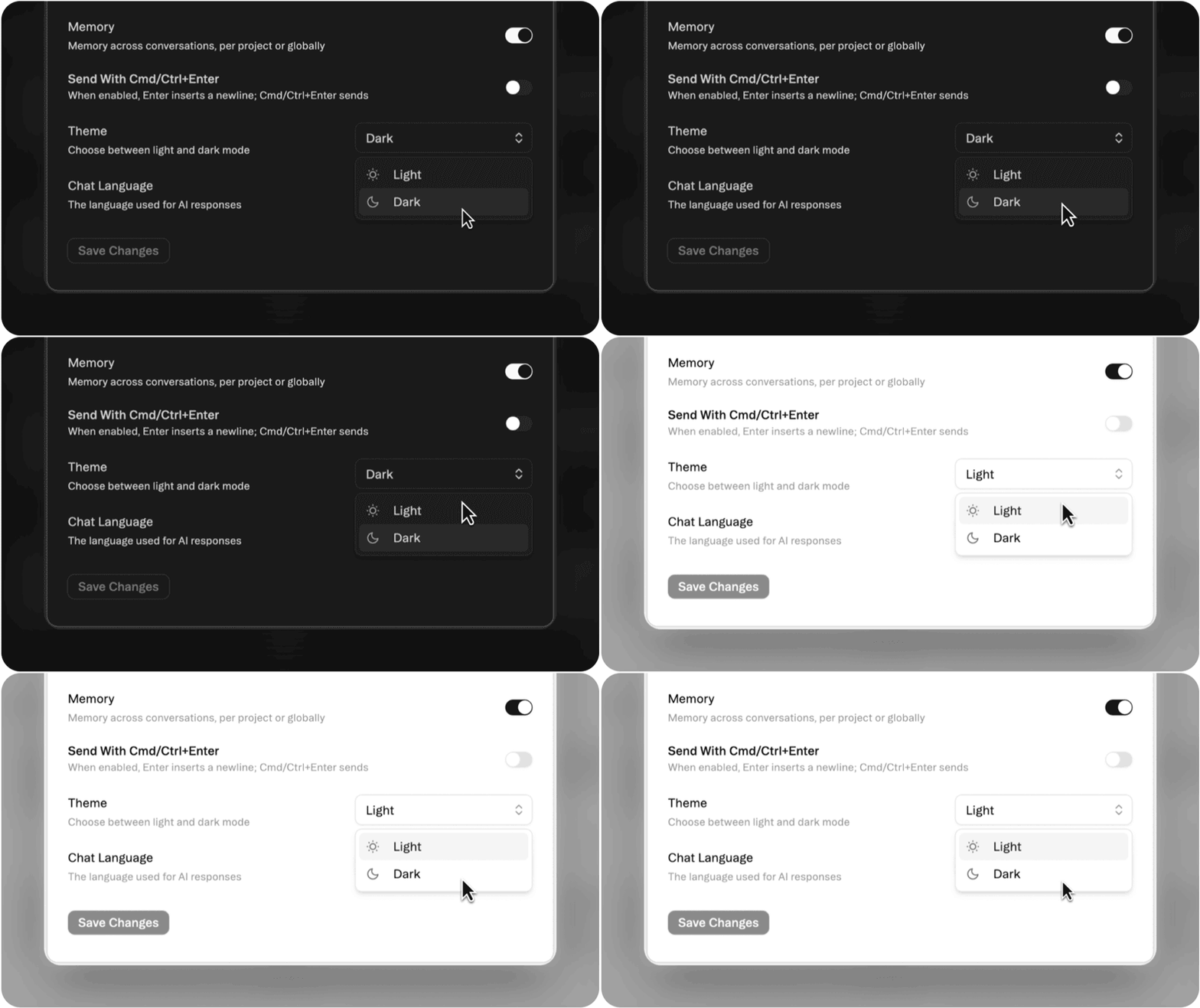
Switch between light and dark to match your focus or your mood. Dark Mode is easier on the eyes and ideal for deep work or late-night sessions.
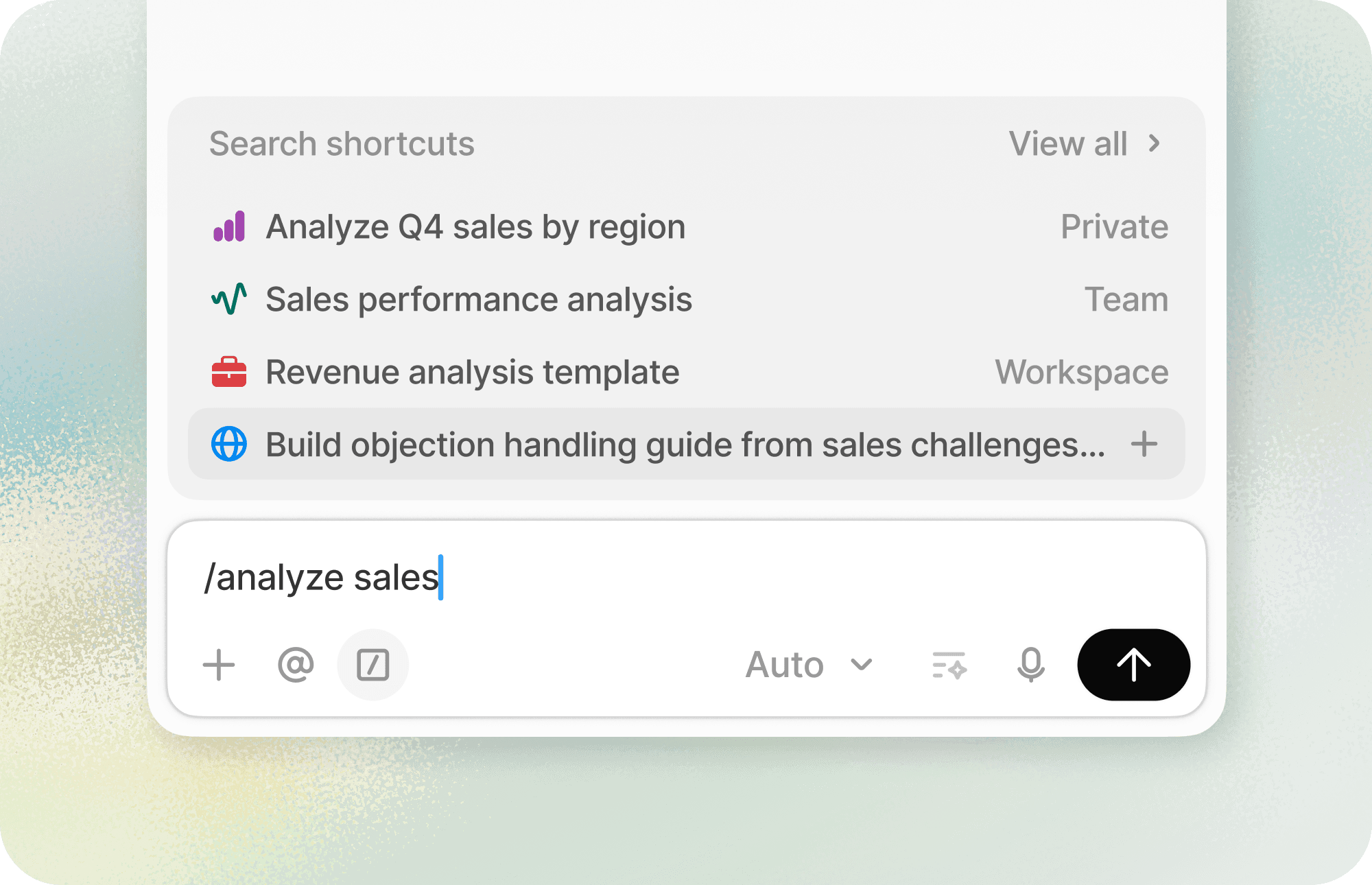
Keep your favorite prompts close. Save prompts you’ve written—or ones shared by Obvious—so you can quickly reuse them anytime.
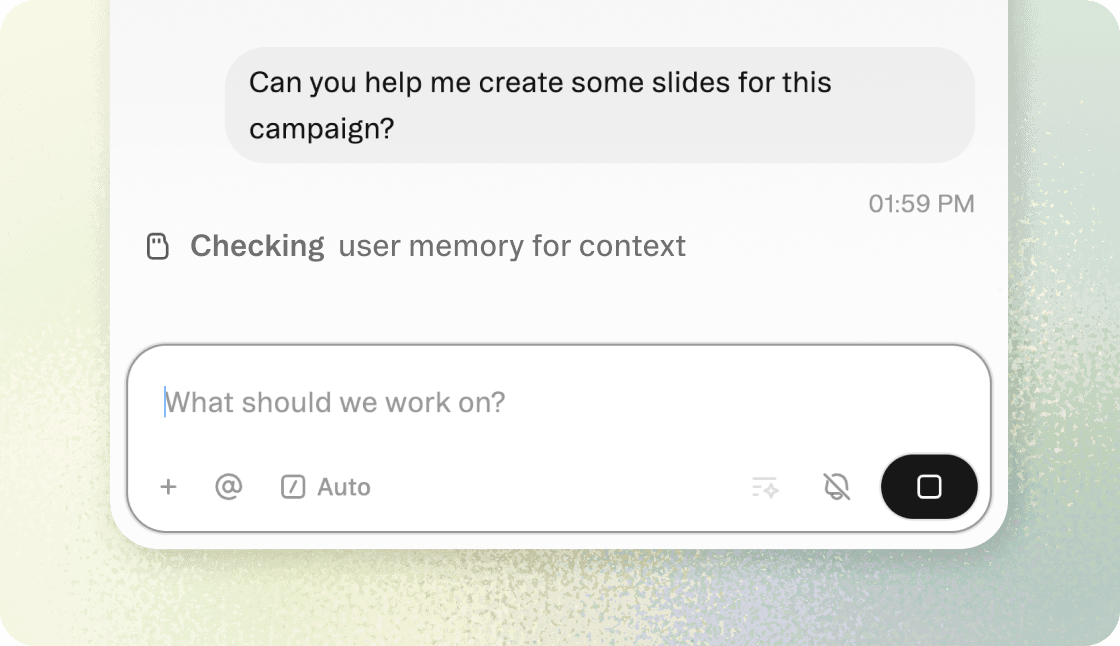
Move forward without starting from scratch each time. When Memory is on, Obvious remembers things about you, your projects, and your threads.
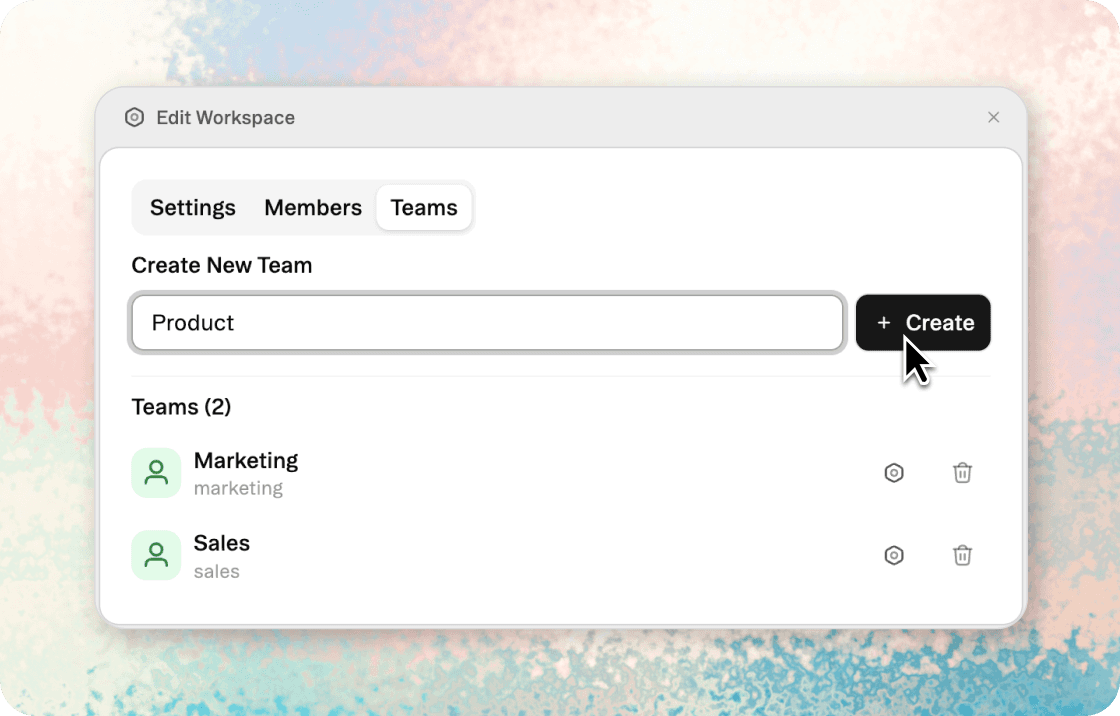
Teams create a shared space for coworkers to collaborate on brainstorming, assets, templates, and projects. Create a team from your Settings and you'll see it appear in the lefthand menu.
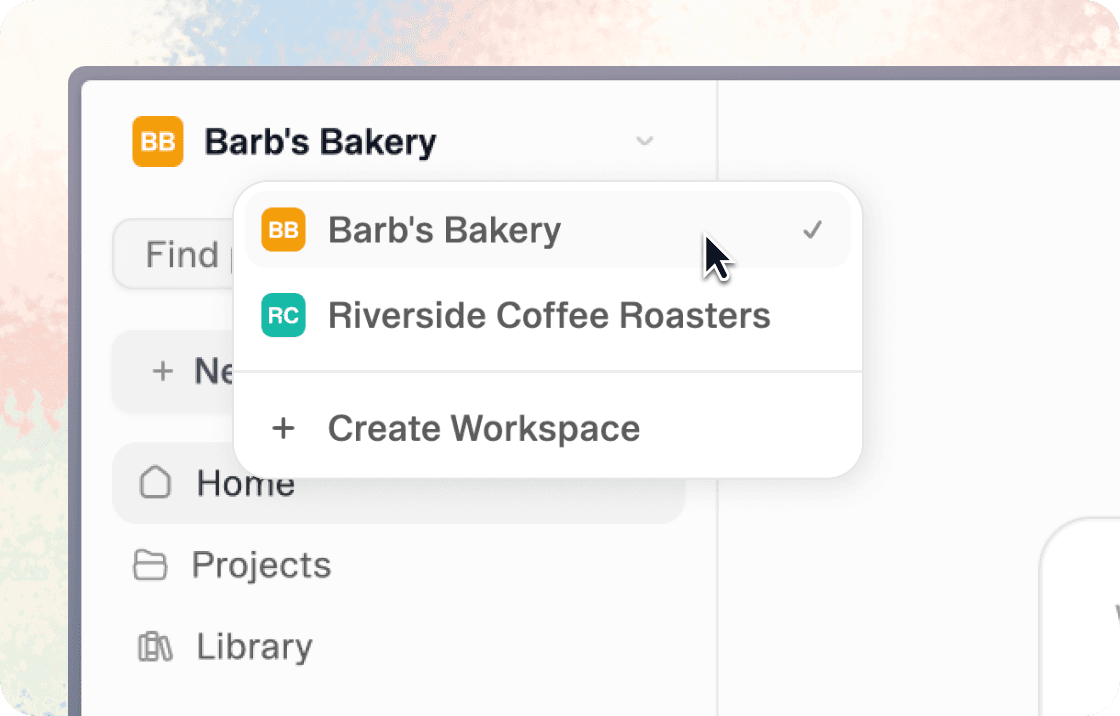
Workspaces allow organizations to manage teams, users, and access inside a company account. Quickly switch between workspaces from the top-left corner of your dashboard.
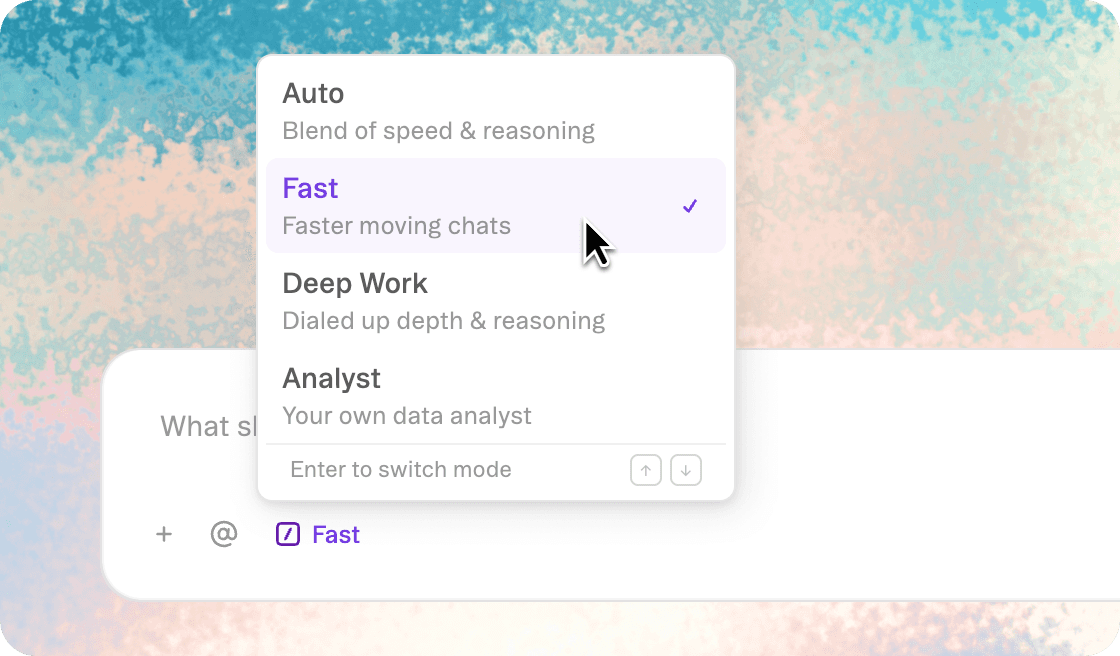
Fast Mode puts responses into sprint gear. It prioritizes responsiveness over depth, delivering quick iterations and insights. Use it when you need a rapid draft or immediate answers to stay in flow.
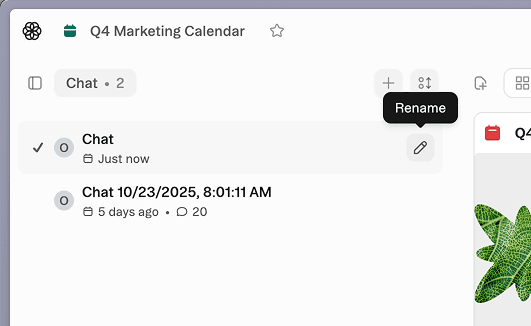
Give each chat a name that makes it easy to find later. Use the rename icon beside a chat thread to label it in a way so it's easy to recognize.
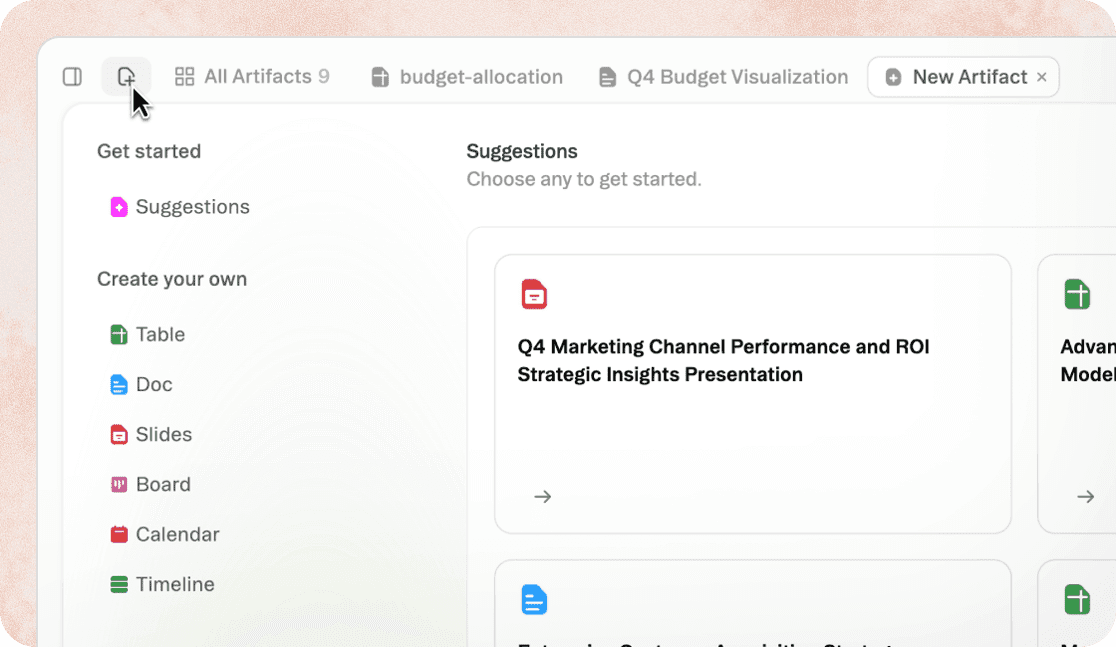
Adding artifacts is now more discoverable. This makes it easier to choose the right format before creating, reducing trial and error.
Click the add icon to see all available types (sheets, documents, slides, boards, and more) with hover previews that show what each looks like.
Learn more about these artifact types and how to choose what's best for your project with this guide.
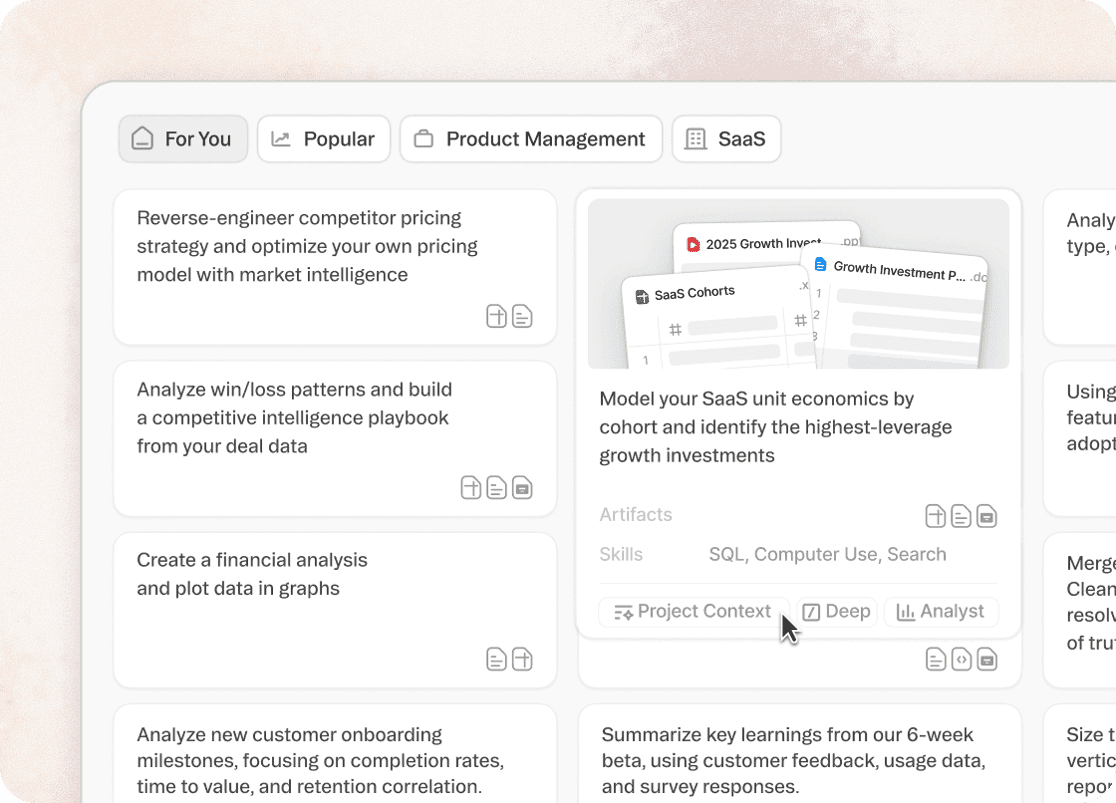
The Shortcuts Library provides curated prompts for common use cases across industries. Think of it as inspiration and education combined, helping you get more value from the platform.
Browse examples for research, data analysis, content creation, and more to understand what's possible.
Your home screen within Obvious now surfaces recommended prompts based on the Personalization settings in your account. You can update your role and company and refresh these suggestions at the bottom right of the home screen.
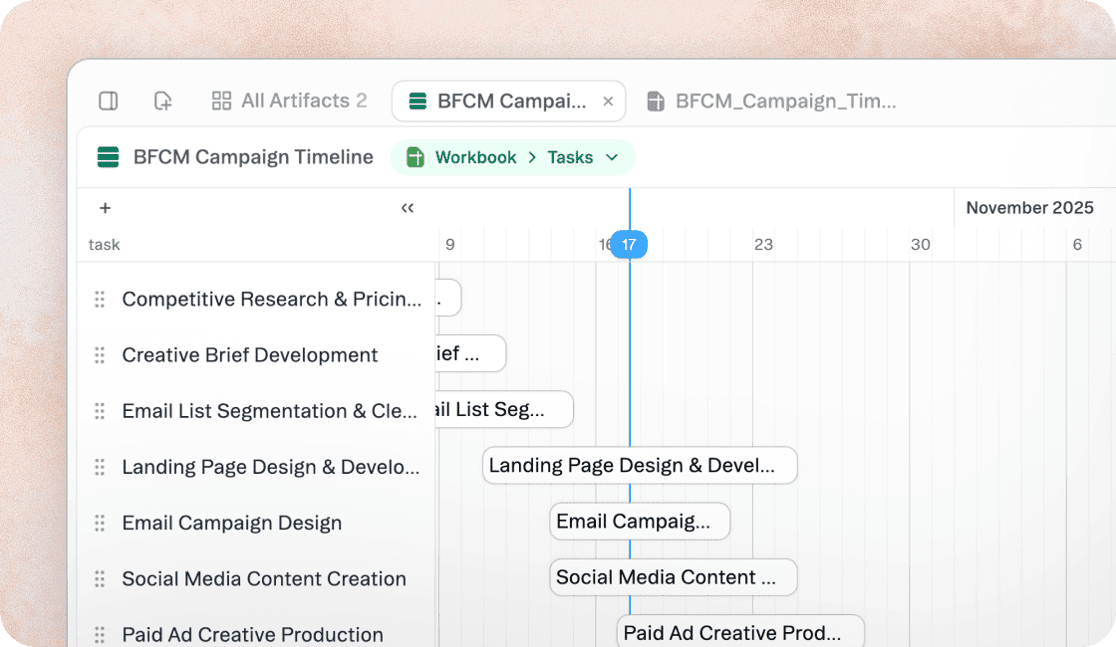
Timeline view transforms your sheet data into a chronological visualization.
Events, deadlines, and milestones appear on a scrollable timeline, making it easy to spot patterns, track project phases, or understand sequence.
Ask the agent to create a timeline view or add one as an artifact in your project.
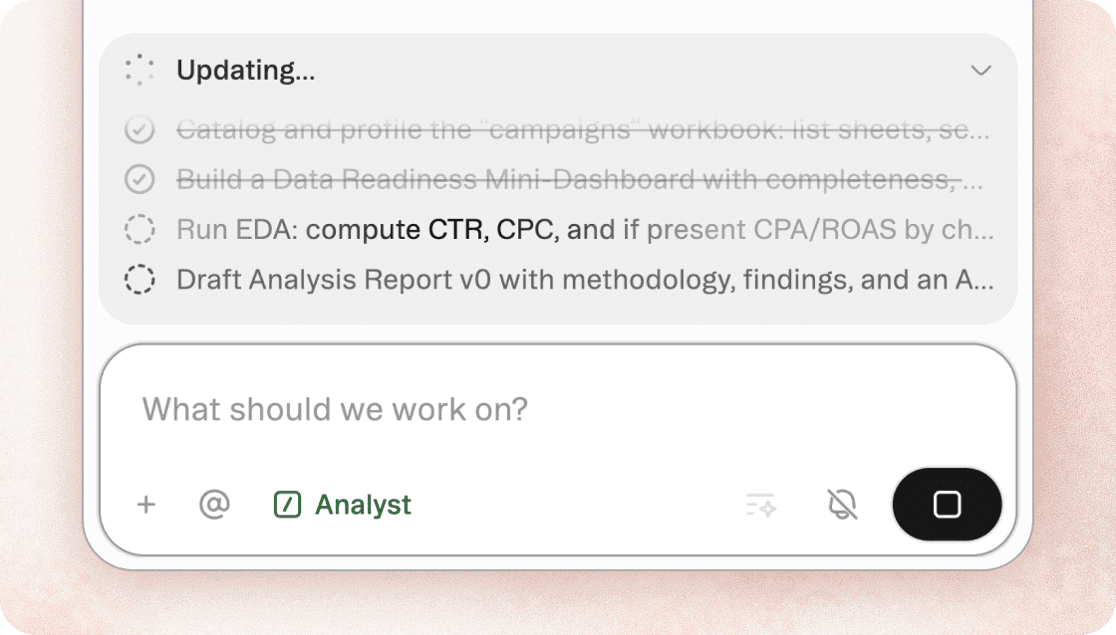
Think of Analyst Mode as assigning a senior analyst to your data. The agent applies statistical methods, complex data transformations, and strategic synthesis to uncover patterns and insights.
Analyst Mode is built for depth, not speed, delivering analysis that informs decisions with confidence. Use it when you need rigorous quantitative analysis, sophisticated data modeling, or thoughtful synthesis of qualitative research.
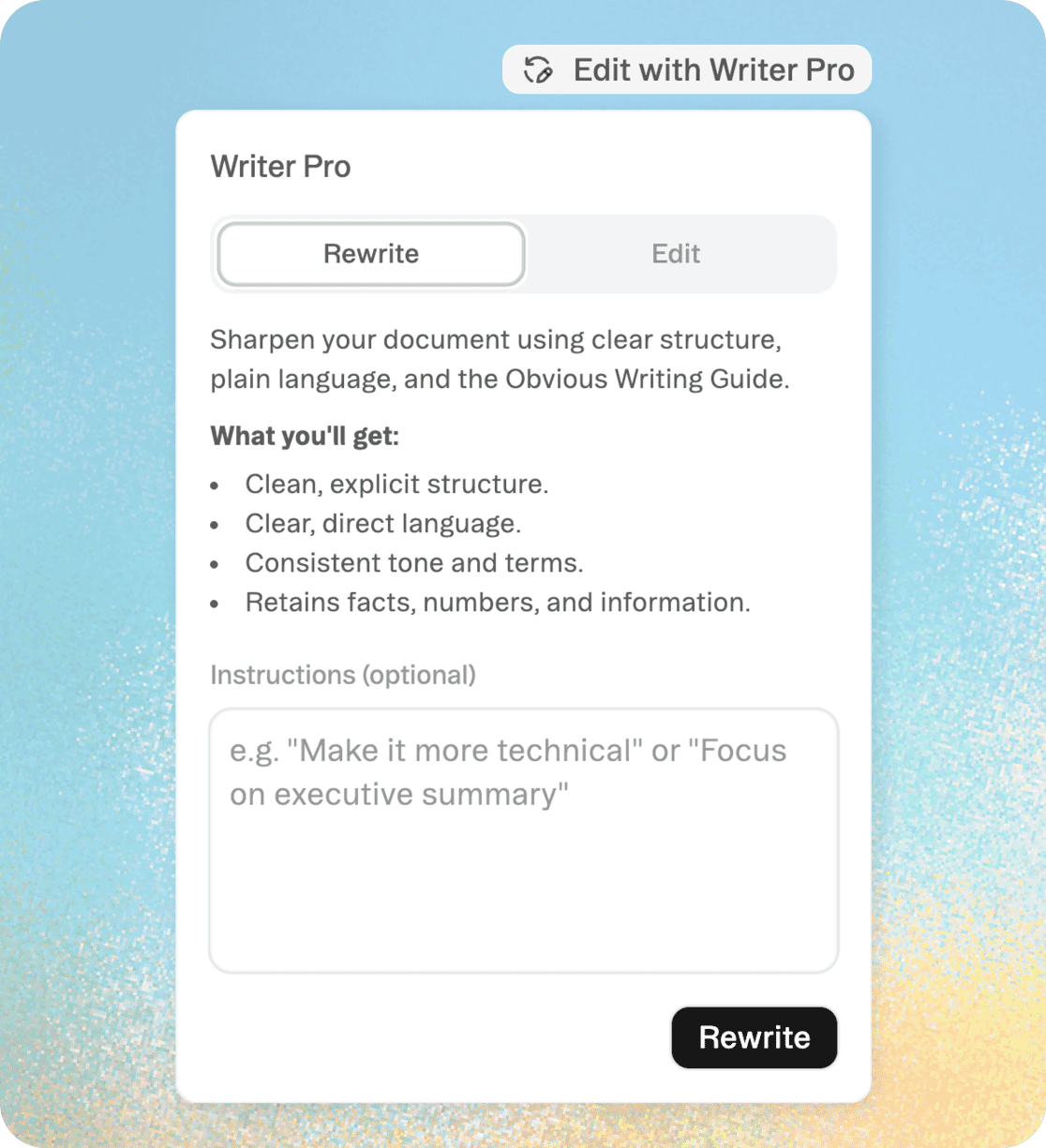
Writer Pro brings editorial intelligence directly into your documents. Use it for polishing drafts, tightening arguments, or adapting content for different audiences.
Instead of prompting in chat, click "Edit with Writer Pro" to request rewrites, tone adjustments, or structural improvements.
The agent works within the document, refining your writing while maintaining your voice and intent.
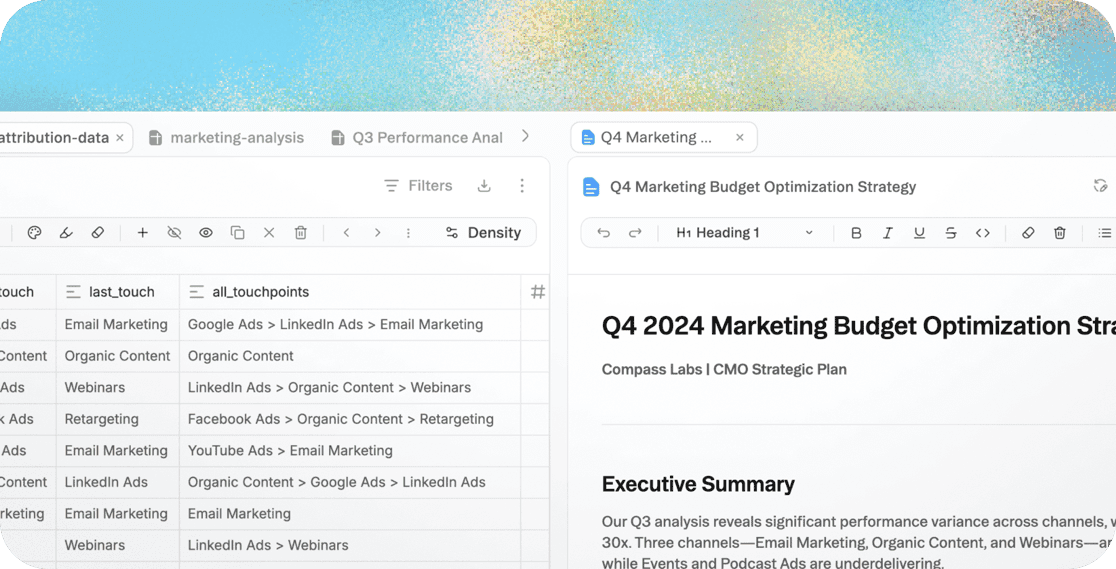
Your workspace now lets you work across two artifacts without losing focus. You can reference data while drafting reports, compare versions of documents, or keep guidelines visible while creating content. No more tab-switching.
Right-click any artifact in your project and choose split view to display items side by side.
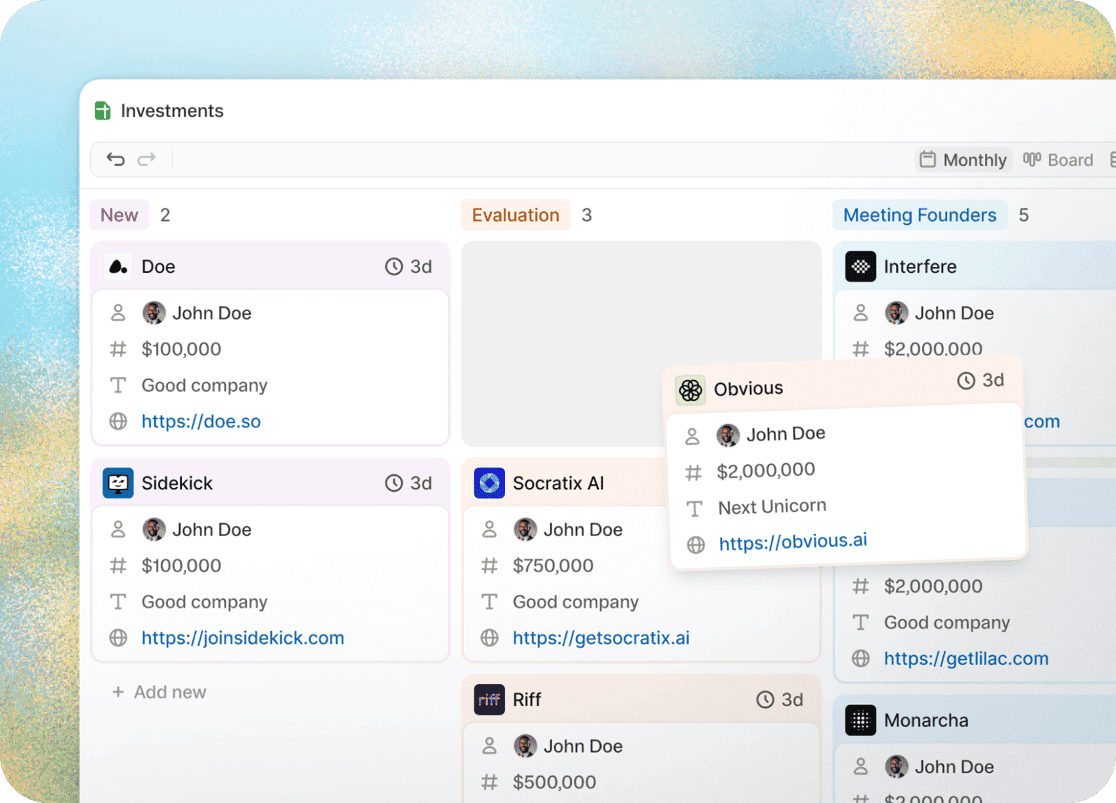
Kanban Boards turn your sheet data into visual project management. Ideal for managing deals, tasks, or any status-driven workflow.
View any sheet as a board, with rows displayed as cards organized by status columns.
Drag cards to update their state, add details inline, and track work through pipelines.
Learn more about kanban boards and how to get started in this article.
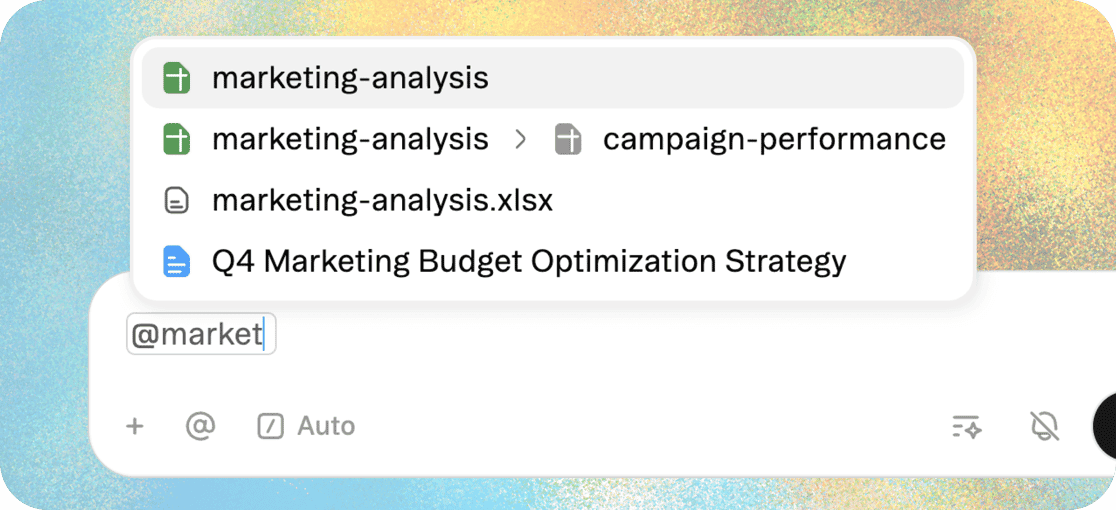
Mentions let you point the agent to exact sources without uploading or copying content. Prompts more precise while reducing the need to manually gather information before starting a task.
Type @ to reference projects, files, artifacts, or specific data fields, and the agent incorporates that context into its work.
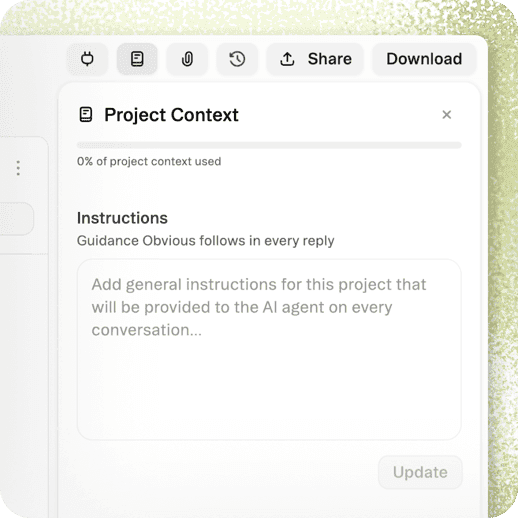
Project Context keeps relevant information at the agent's fingertips without cluttering every prompt. Unlike Personalization, Project Context stays scoped to one project, making it ideal for client work or specialized initiatives.
Upload reference files, style guides, or project briefs that should inform all work in this space.
Learn best practices for utilizing Project Context in this article.
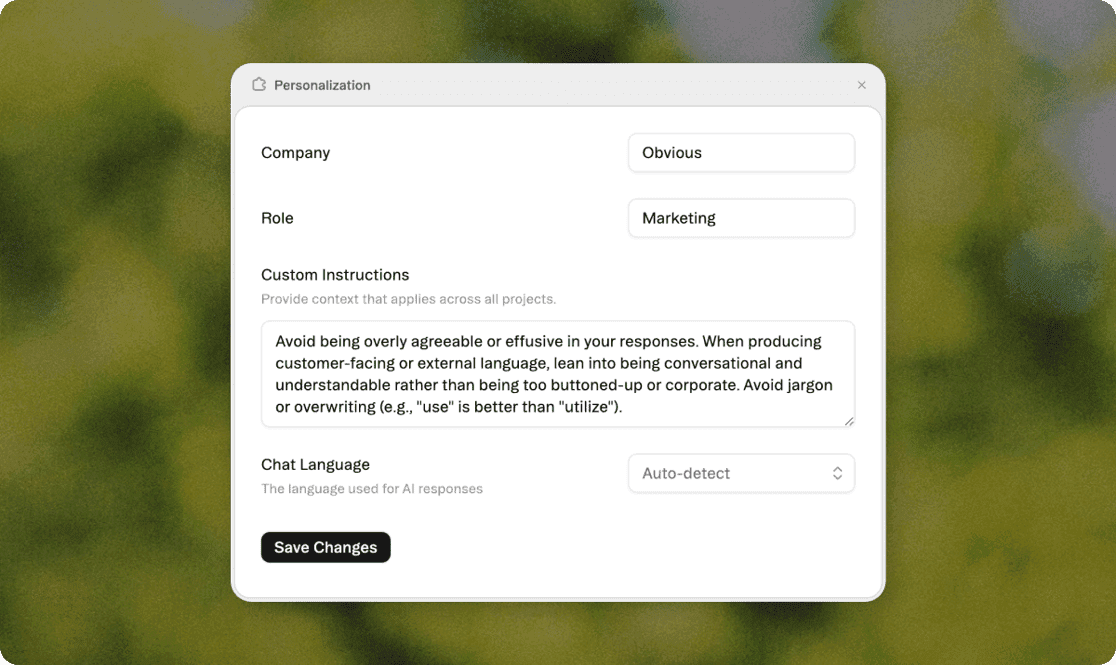
Personalization gives you account-level control over how the agent works with you. Unlike project-specific context, these settings travel with you across all projects, creating consistent, informed responses wherever you work.
Add details about your role, company, industry, and preferences that should inform every interaction.
Learn how to configure your account-level specifications in this step-by-step guide.
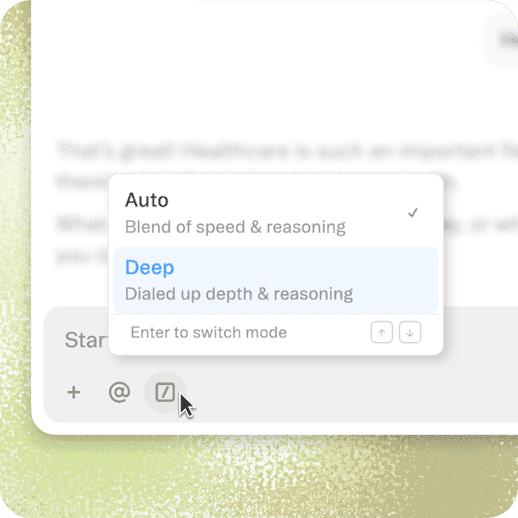
Deep Mode activates enhanced reasoning capabilities that go beyond standard responses. The agent takes additional time to consider multiple approaches, evaluate tradeoffs, and develop more sophisticated solutions.
Use Deep Mode when you need strategic analysis, complex problem-solving, or outputs that require careful consideration of context and implications. Expect longer processing times but significantly more thoughtful results.