Command K
⌘K keeps you moving through everything Obvious is doing on your behalf. All plans included.
Command K keyboard shortcut for Obvious navigation
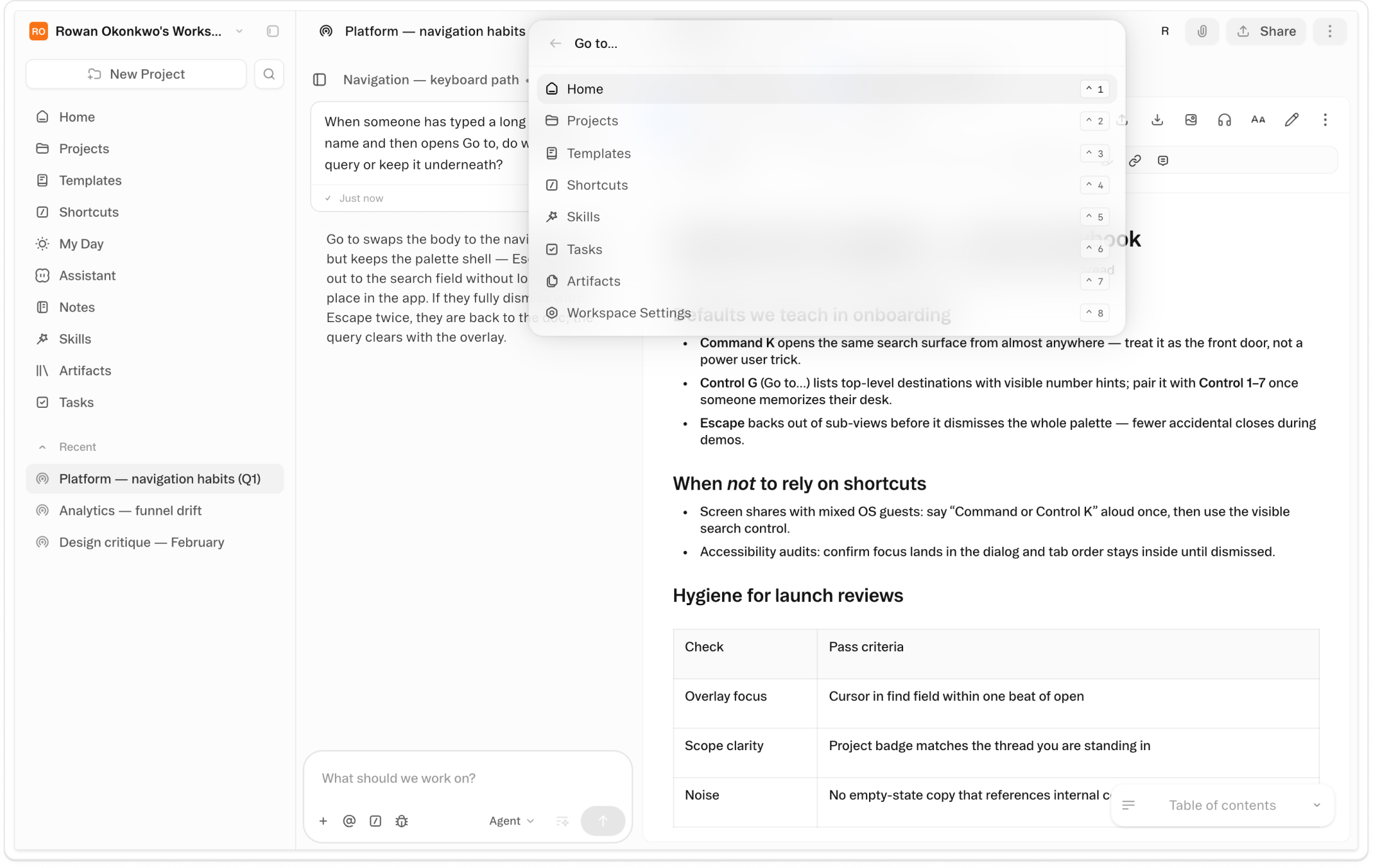
About Command K
One keypress, anywhere. ⌘K (Ctrl+K on Windows and Linux) focuses the Obvious search input from wherever you are — no matter what project is open, what document is being edited, or how deep you are in a thread. Type three characters and you're moving. Every project, every thread, every artifact is one shortcut away.
You can't lead what you can't navigate. The real unlock for power users isn't any single agent — it's the ability to run several at once and stay in command of all of them. ⌘K is what makes that possible. Jump to the thread where your research agent just posted findings, issue a follow-up, and return to what you were doing in under 90 seconds. No mouse, no trip through the home screen, no lost context.
The tool that keeps you in motion. Obvious is built for a world where AI handles enormous amounts of work on your behalf. That only feels good if you can move around freely — if you're surfing the work, not wading through the interface to find it. ⌘K is the mechanism that keeps the human in motion. The agents do the heavy lifting; you stay at the front of the wave.
Videos
Shortcuts
One-click prompts to try this feature
Cross-Thread Agent Check-In
Jump to a running agent thread, review its latest output, and send a follow-up — then return to your previous thread. Keyboard stays down the whole time.
Multi-Project Morning Triage
Move through five active projects in sequence, check what each agent produced overnight, and queue your priorities — no mouse, no home screen.
Mid-Document Agent Dispatch
You're writing and you need a data point from a different thread. ⌘K there, get the answer, paste it, return. Writing stays continuous.
FAQ
Get help with Command K
Find guides, tutorials, and support articles in our help center.
Visit help center →